One-time payment QR
Install AI tools
Give your assistant up-to-date guidance for our APIs, with our plugin or without it.
The plugin is still under development. See the AI tools page for details.
- Claude Code
- Cursor
- Codex
- Without installing
Run both commands, in order.
claude plugin marketplace add vippsas/agent-toolkit
claude plugin install vipps-developer@agent-toolkit
Open Settings, then Plugins.
Add vippsas/agent-toolkit as a plugin marketplace, then install the "vipps-developer" plugin.
For the app, add the marketplace "vippsas/agent-toolkit" and then install "vipps-developer". For the CLI, run the following commands.
codex plugin marketplace add vippsas/agent-toolkit
codex plugin add vipps-developer@agent-toolkit
Paste this into any assistant.
Read https://github.com/vippsas/agent-toolkit/blob/main/plugins/vipps-developer/README.md for Vipps MobilePay integration guidance.
For troubleshooting, see the full instructions.
Generate one-time QR codes for in-store payments. Scanning opens the Vipps or MobilePay app for instant approval—no phone number needed.
When using the ePayment API, the QR code comes back from the payment request itself, so there is no call to the QR API. The QR API is only needed for the Recurring API or the legacy eCom API, or when you need a printed code that is not tied to a single payment.
For a visual walkthrough of the customer's experience with one-time payment QR codes, see How it works with QR codes.
Scenario
Generate the payment request with the
POST:/epayment/v1/payments endpoint with:
"userFlow": "QR".- (Optional)
qrFormatandsizefor the QR
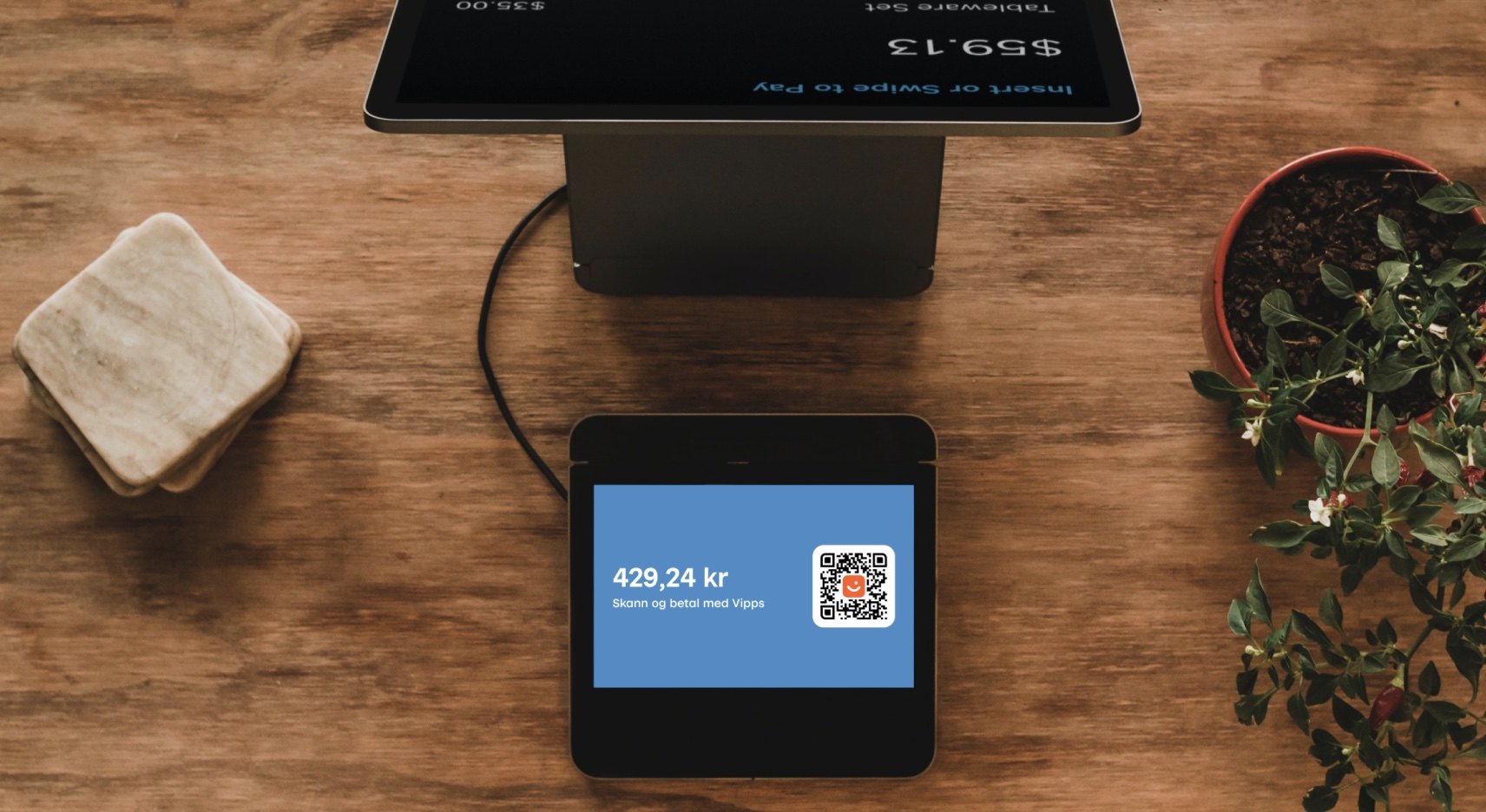
Image: A one-time payment QR code displayed on a merchant screen for a customer to scan with their Vipps or MobilePay app.
Since the customer will scan from their phone, you don't need their phone number. This payment command can do an app-switch and open their Vipps or MobilePay app with the payment request.
Authorization
All ePayment API requests must include a valid Bearer token in the Authorization header.
See Authorization for how to obtain one.
Request
Generate the payment request with dynamic QR:
curl -X POST https://apitest.vipps.no/epayment/v1/payments \
-H "Content-Type: application/json" \
-H "Authorization: Bearer YOUR-ACCESS-TOKEN" \
-H "Ocp-Apim-Subscription-Key: YOUR-SUBSCRIPTION-KEY" \
-H "Merchant-Serial-Number: YOUR-MSN" \
-H "Idempotency-Key: YOUR-IDEMPOTENCY-KEY" \
-H "Vipps-System-Name: acme" \
-H "Vipps-System-Version: 3.1.2" \
-H "Vipps-System-Plugin-Name: acme-webshop" \
-H "Vipps-System-Plugin-Version: 4.5.6" \
-d '{
  "userFlow": "QR",
  "qrFormat": {
    "format": "IMAGE/SVG+XML"
  },
  "amount": {
    "value": 42924,
    "currency": "NOK"
  },
  "paymentMethod": {
    "type": "WALLET"
  },
  "customerInteraction": "CUSTOMER_PRESENT",
  "receipt":{
    "orderLines": [
      {
        "name": "Ear buds",
        "id": "21231211",
        "totalAmount": 42924,
        "totalAmountExcludingTax": 34339,
        "totalTaxAmount": 8585,
        "taxRate": 2500
      }
    ],
    "bottomLine": {
      "currency": "NOK",
      "posId": "vending_machine_12345",
      "receiptNumber": "0527013501"
    }
  },
  "reference": "2486791679658155992",
  "returnUrl": "http://example.com/redirect?reference=2486791679658155992",
  "paymentDescription": "Ear buds"
}'
Specify "customerInteraction": "CUSTOMER_PRESENT", since the customer is present.
You can also specify the order details at this time.
Display the dynamic QR on a screen facing the customer.
When the customer scans the QR code and is directed to the Vipps or MobilePay app, the payment screen is presented and they click Pay.
Once the payment is approved, update the status in your system. To determine that the user has authorized the payment, you can get notifications via the Webhooks API and/or poll for the status.
The result of this request will contain a redirectUrl pointing to a link where you can download the QR image.
Sequence diagram
Dynamic QR directing to the app
- Customer selects the products.
- Merchant requests a payment with a QR user flow via the ePayment API.
- ePayment API returns the one-time payment QR to the merchant.
- Merchant displays the one-time QR on a screen facing the customer.
- Customer scans the QR, selects a card, and confirms the payment.
- Webhooks API sends the merchant an authorized, aborted, or expired event.
- Merchant gets the payment from the ePayment API, as a backup if the webhook is delayed or missed.
- ePayment API returns the current state of the payment.
- If the payment was aborted or expired, the merchant removes the QR and returns the customer to the checkout screen, and the flow ends.
- If the payment was authorized, the merchant captures the payment via the ePayment API.
- ePayment API returns the status of the capture.
- Merchant verifies that the POS status matches the capture.