How Express works
Install AI tools
Give your assistant up-to-date guidance for our APIs, with our plugin or without it.
The plugin is still under development. See the AI tools page for details.
- Claude Code
- Cursor
- Codex
- Without installing
Run both commands, in order.
claude plugin marketplace add vippsas/agent-toolkit
claude plugin install vipps-developer@agent-toolkit
Open Settings, then Plugins.
Add vippsas/agent-toolkit as a plugin marketplace, then install the "vipps-developer" plugin.
For the app, add the marketplace "vippsas/agent-toolkit" and then install "vipps-developer". For the CLI, run the following commands.
codex plugin marketplace add vippsas/agent-toolkit
codex plugin add vipps-developer@agent-toolkit
Paste this into any assistant.
Read https://github.com/vippsas/agent-toolkit/blob/main/plugins/vipps-developer/README.md for Vipps MobilePay integration guidance.
For troubleshooting, see the full instructions.
This is how Express works with the ePayment API. Express streamlines the checkout process by letting customers select shipping options and confirm delivery details directly within the Vipps MobilePay app.
This page shows the customer's journey from clicking the Express button through order confirmation.
The customer goes from the Express button to a finished payment without leaving the app:
- Vipps
- MobilePay
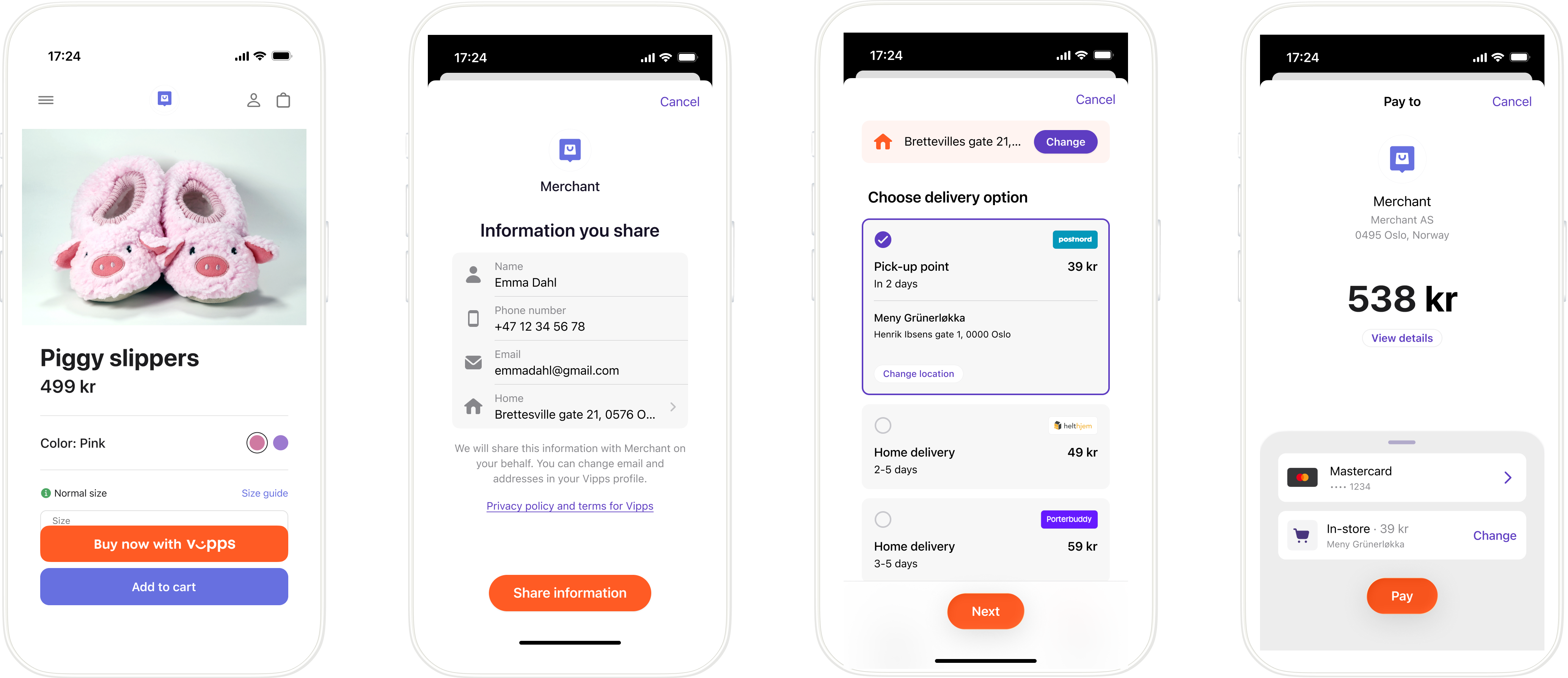
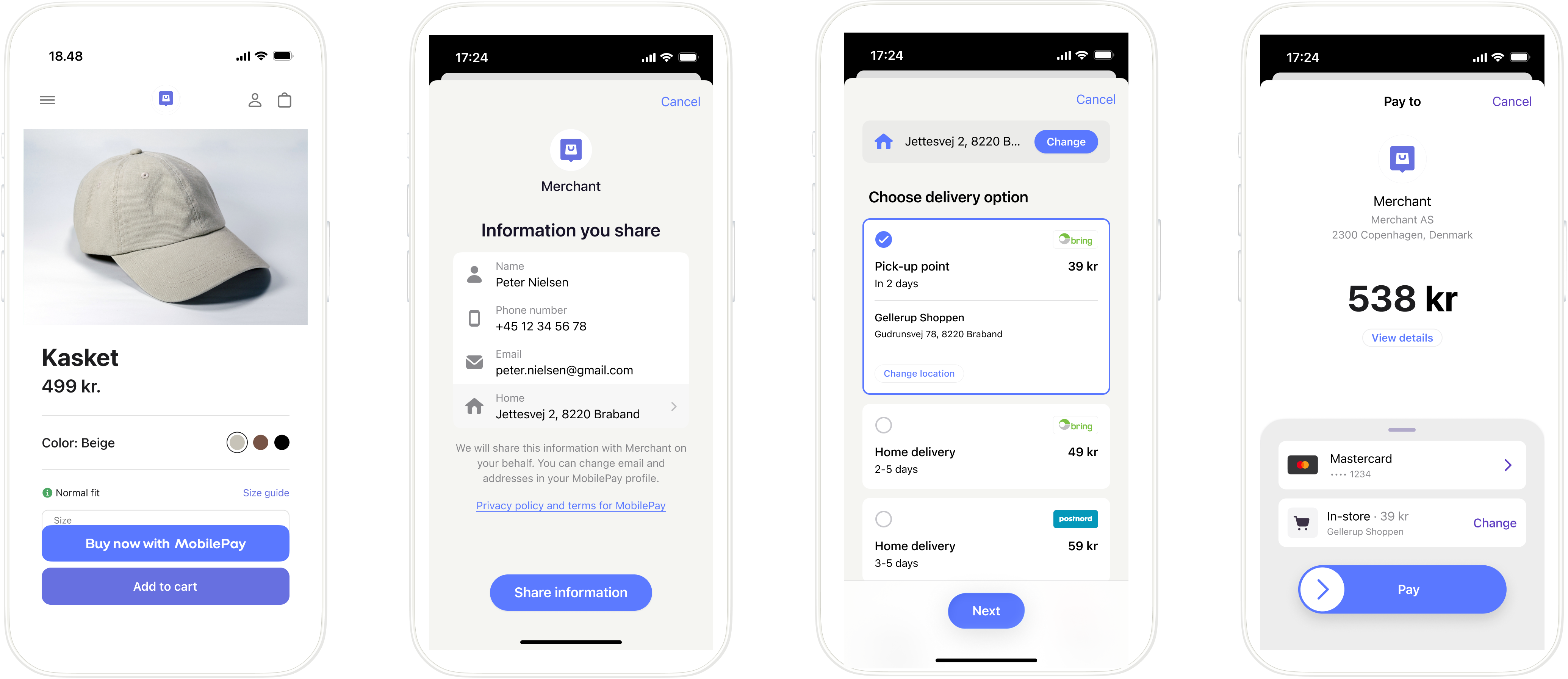
Four-screen Express flow (Vipps or MobilePay): (1) Product page with Express button. (2) Information sharing consent screen. (3) Delivery options with pick-up point and home delivery choices. (4) Payment summary with card and delivery selection. The steps below describe each of these in turn.
Details
1. Customer clicks the Express button
On a merchant's website or app, the customer sees an Express button on the product page or in the shopping cart. They click it to begin the streamlined checkout process.
Use the Widget SDK to render the button. The SDK serves its appearance, so it always reflects the current design guidelines and the correct brand for your market.
2. The merchant creates an Express payment request
When the customer clicks the Express button, the merchant creates an Express payment request with POST:/epayment/v1/payments.
The request includes:
paymentMethod.typeset toWALLETfor merchants and partners. PSPs useCARD_PASSTHROUGHinstead — see PSP ePayment integration.profile.scopemust includeaddress. Also include every other scope you need to deliver the order, usuallyname email phoneNumber address.shipping.fixedOptionsorshipping.dynamicOptionswith available shipping methods
For implementation details and code examples, see Create an Express payment.
3. Customer opens the Vipps/MobilePay app
The Widget SDK handles the transition from the merchant's website to the Vipps/MobilePay app automatically.
If the payment was started from a mobile device, the Vipps or MobilePay app opens automatically.
If the payment was started on a desktop device, a payment dialog opens. The customer enters their phone number and clicks Next to send the payment request to the app on their phone.
4. Customer consents to share profile information
Before seeing the payment amount, the customer is asked to consent to sharing their address with the merchant.
This consent is required for Express, so the merchant can fulfill and ship the order.
For more about profile sharing and privacy, see:
- Profile sharing feature - Complete guide to requesting and retrieving profile data
5. Customer selects their shipping option
After consenting, the customer sees the available shipping options. They can:
- View their current delivery address
- Change their address if needed
- Select from different shipping methods (home delivery, pickup points, and more)
- Choose specific delivery times or locations
For details about the screens and about configuring shipping options, see Shipping options.
6. Customer confirms the total payment amount
Once the customer has selected their shipping option, the total amount (product price + shipping cost) is displayed. The customer reviews the final amount and confirms the payment.
The ePayment API automatically reserves the total payment amount.
7. The merchant learns the outcome from webhooks and polling
The merchant's system has no visibility into what happens in the app, so it must subscribe to webhooks to be notified when the customer acts on the payment. Register the webhook with the Webhooks API before creating the payment, so that no event is missed while the customer is paying, and subscribe to all three outcomes:
epayments.payment.authorized.v1: the customer approved the payment in the app.epayments.payment.aborted.v1: the customer canceled the payment in the app.epayments.payment.expired.v1: the customer did not confirm the payment in time, 10 minutes by default.
Webhooks can be delayed or missed, so do not rely on them alone. Back them up by polling
GET:/epayment/v1/payments/{reference}
for the payment state, following the polling guidelines:
start after 5 seconds, then check every 2 seconds.
8. The merchant reads the order details
Once the payment is authorized, the webhook payload and the
GET:/epayment/v1/payments/{reference}
response both carry the details the merchant needs to fulfill the order:
shippingDetails: the shipping address, the selected shipping option, and its costuserDetails: the customer's name, email, and phone number
For details about the response, see Get payment details.
9. The merchant completes the order and shipping
The merchant uses the provided address and shipping preferences to fulfill and ship the order.
Optionally, the merchant can add order information and tracking links using the Order Management API, which will display in the customer's app.
10. The merchant captures the payment
Authorization only reserves the amount. Capturing the payment is what transfers the funds, so the merchant
captures once the order is ready to ship, using
POST:/epayment/v1/payments/{reference}/capture.
The funds are then transferred to the merchant's account. This may take 2 or 3 days, depending on the bank.
Sequence diagram
Express flow
- Customer clicks the Express button.
- Merchant creates an Express payment via the ePayment API with the wallet payment method and shipping options.
- ePayment API returns a redirectUrl and payment reference to the merchant.
- Merchant handles the app switch with the redirectUrl. We recommend using the Widget SDK for this.
- ePayment API requests the payment in the customer's Vipps or MobilePay app.
- Customer shares their address, selects a shipping option, and confirms the total amount.
- Webhooks API sends the merchant an authorized, aborted, or expired event.
- Merchant gets the payment from the ePayment API, as a backup if the webhook is delayed or missed.
- ePayment API returns the current state of the payment, including the shipping details and the user details.
- If the payment was aborted or expired, the merchant returns the customer to the page they started from, and the flow ends.
- If the payment was authorized, the merchant displays order confirmation to the customer.
- Merchant prepares the order (packs goods, makes ready to dispatch).
- Merchant captures the payment via the ePayment API.
- ePayment API returns a response with the captured amount.
- Merchant verifies the captured amount matches expected before shipping.
- Merchant ships the order (only after full capture is verified).
For a detailed sequence diagram, see Express API guide: Sequence diagram.
Fixed vs. dynamic shipping options
Merchants can provide shipping options in two ways:
Fixed options - When you know all shipping options in advance, include them in the payment request. This is faster and simpler. See Fixed options.
Dynamic options - When shipping options depend on the customer's address, register a callback endpoint. After the customer consents, we'll send their address to your endpoint, and you respond with available shipping options. See Dynamic options.
Limitations
- When
shipping.allowedCountriesis not set, the shipping address must be in the country that corresponds to the payment currency. Setshipping.allowedCountriesto support one or more other shipping countries. - The currency of every shipping option must match the payment currency.
- For payments using
WALLET, the transaction currency must match the country where the sales unit is registered. PSPs usingCARD_PASSTHROUGHcan use any supported currency, subject to their commercial agreement.
For complete details, see Limitations.
Next steps
See Express feature documentation for complete technical implementation details, API specifications, and code examples.
See Recommended flows: Online payments for a streamlined overview of both standard and Express flows.