How to make one-time payment QRs
Install AI tools
Give your assistant up-to-date guidance for our APIs, with our plugin or without it.
The plugin is still under development. See the AI tools page for details.
- Claude Code
- Cursor
- Codex
- Without installing
Run both commands, in order.
claude plugin marketplace add vippsas/agent-toolkit
claude plugin install vipps-developer@agent-toolkit
Open Settings, then Plugins.
Add vippsas/agent-toolkit as a plugin marketplace, then install the "vipps-developer" plugin.
For the app, add the marketplace "vippsas/agent-toolkit" and then install "vipps-developer". For the CLI, run the following commands.
codex plugin marketplace add vippsas/agent-toolkit
codex plugin add vipps-developer@agent-toolkit
Paste this into any assistant.
Read https://github.com/vippsas/agent-toolkit/blob/main/plugins/vipps-developer/README.md for Vipps MobilePay integration guidance.
For troubleshooting, see the full instructions.
This flow uses a one-time payment QR (i.e., a dynamic QR) that is shown on a screen.
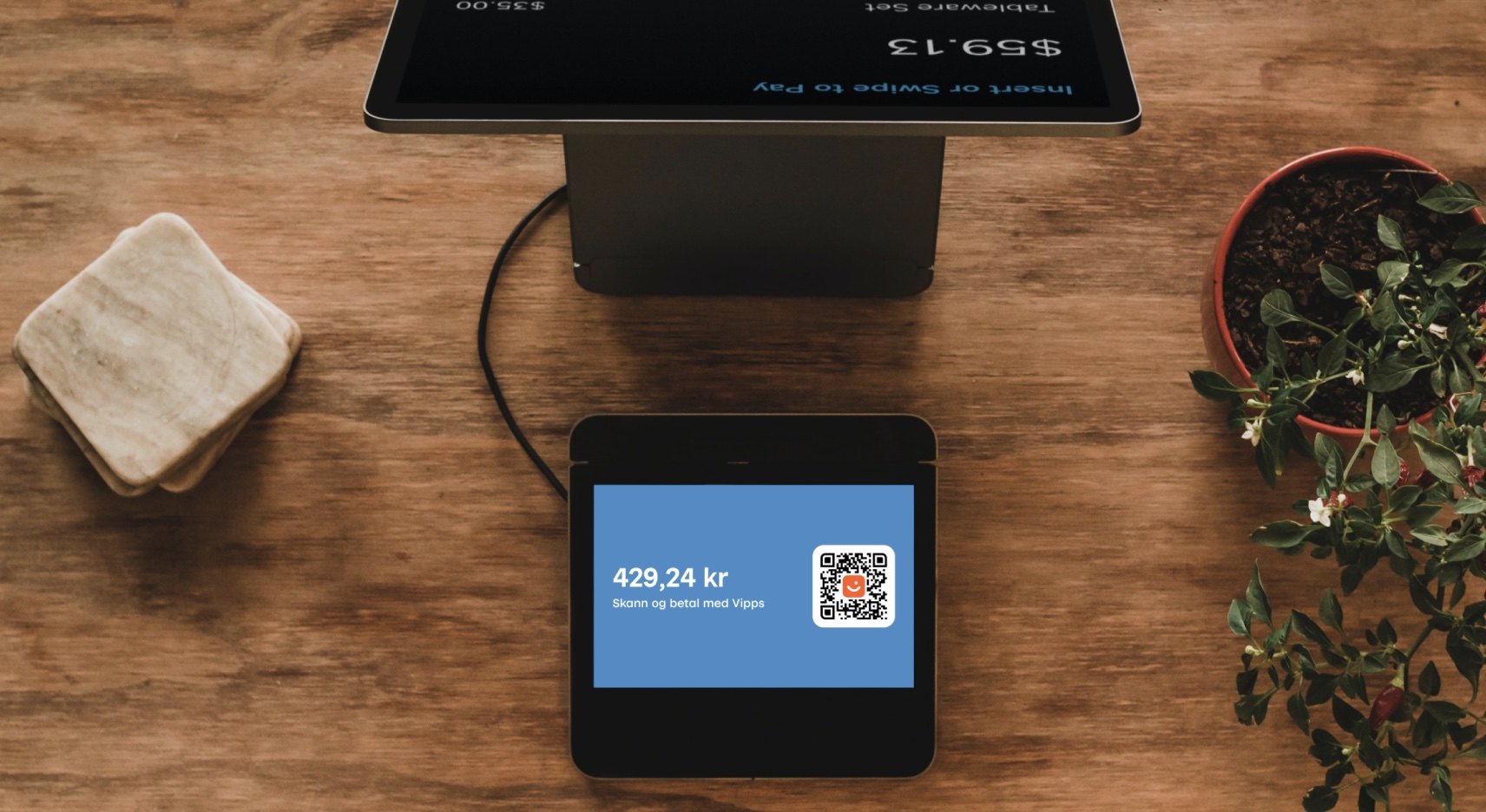
Flow diagram: A one-time payment QR code displayed on a screen. The customer scans the QR code with the Vipps or MobilePay app to authorize the payment.
The QR directs the customer to the Vipps or MobilePay app, where they authorize the payment.
Details
A one-time payment QR code is presented on the vending machine or screen. The QR code is a dynamic representation of the payment URL, and the customer needs to scan it and pay within 10 minutes.
1. The customer selects their products
The customer either scans their own products or hands them to an attendant.
2. The merchant's system requests a payment and dynamic QR code
When the customer selects a product, the system generates the payment request with a dynamic QR code by sending a
POST:/epayment/v1/payments request with:
userFlowset toQR(optionally specifyqrFormatandsizefor the QR)"customerInteraction": "CUSTOMER_PRESENT"(required by regulation)
Since the customer scans the QR from their own phone, you don't need their phone number.
For a full example, see ePayment Features: One-time payment QR.
3. Vipps MobilePay returns the QR code
Vipps MobilePay returns the one-time payment QR in the create payment response.
4. The merchant's system displays the QR on the screen
The merchant's system displays the one-time payment QR on a screen facing the customer.
5. The customer scans the QR and confirms the payment
The customer scans the QR code and is directed to the Vipps or MobilePay app, where the payment screen is presented and they click Pay. They have 10 minutes from when the QR is created.
6. The merchant learns the outcome from webhooks and polling
The merchant's system has no visibility into what happens in the app, so it must subscribe to webhooks to be notified when the customer acts on the payment. Register the webhook with the Webhooks API before the QR is displayed, so that no event is missed while the customer is paying, and subscribe to all three outcomes:
epayments.payment.authorized.v1: the customer approved the payment in the app.epayments.payment.aborted.v1: the customer canceled the payment in the app.epayments.payment.expired.v1: the customer did not confirm the payment in time, 10 minutes by default.
Webhooks can be delayed or missed, so do not rely on them alone. Back them up by polling
GET:/epayment/v1/payments/{reference}
for the payment state, following the polling guidelines:
start after 5 seconds, then check every 2 seconds.
Once the payment is approved, the merchant updates the status in their system.
7. The merchant captures the payment
Authorization only reserves the amount. Capturing the payment is what transfers the funds, so the merchant
captures once the customer has received the goods, using
POST:/epayment/v1/payments/{reference}/capture,
and confirms that the capture succeeded.
The funds are then transferred to the merchant's account. This may take 2 or 3 days, depending on the bank.
Sequence diagram
Dynamic QR directing to the app
- Customer selects the products.
- Merchant requests a payment with a QR user flow via the ePayment API.
- ePayment API returns the one-time payment QR to the merchant.
- Merchant displays the one-time QR on a screen facing the customer.
- Customer scans the QR, selects a card, and confirms the payment.
- Webhooks API sends the merchant an authorized, aborted, or expired event.
- Merchant gets the payment from the ePayment API, as a backup if the webhook is delayed or missed.
- ePayment API returns the current state of the payment.
- If the payment was aborted or expired, the merchant removes the QR and returns the customer to the checkout screen, and the flow ends.
- If the payment was authorized, the merchant captures the payment via the ePayment API.
- ePayment API returns the status of the capture.
- Merchant verifies that the POS status matches the capture.
More details
For more details, see ePayment Features: Payment through a QR.