How the ePayment PSP API works with Express
Install AI tools
Give your assistant up-to-date guidance for our APIs, with our plugin or without it.
The plugin is still under development. See the AI tools page for details.
- Claude Code
- Cursor
- Codex
- Without installing
Run both commands, in order.
claude plugin marketplace add vippsas/agent-toolkit
claude plugin install vipps-developer@agent-toolkit
Open Settings, then Plugins.
Add vippsas/agent-toolkit as a plugin marketplace, then install the "vipps-developer" plugin.
For the app, add the marketplace "vippsas/agent-toolkit" and then install "vipps-developer". For the CLI, run the following commands.
codex plugin marketplace add vippsas/agent-toolkit
codex plugin add vipps-developer@agent-toolkit
Paste this into any assistant.
Read https://github.com/vippsas/agent-toolkit/blob/main/plugins/vipps-developer/README.md for Vipps MobilePay integration guidance.
For troubleshooting, see the full instructions.
Express extends the Online flow with built-in shipping selection directly in the Vipps
MobilePay app, using CARD_PASSTHROUGH with the ePayment API.
The customer goes from the Express button to a finished payment without leaving the app:
- Vipps
- MobilePay
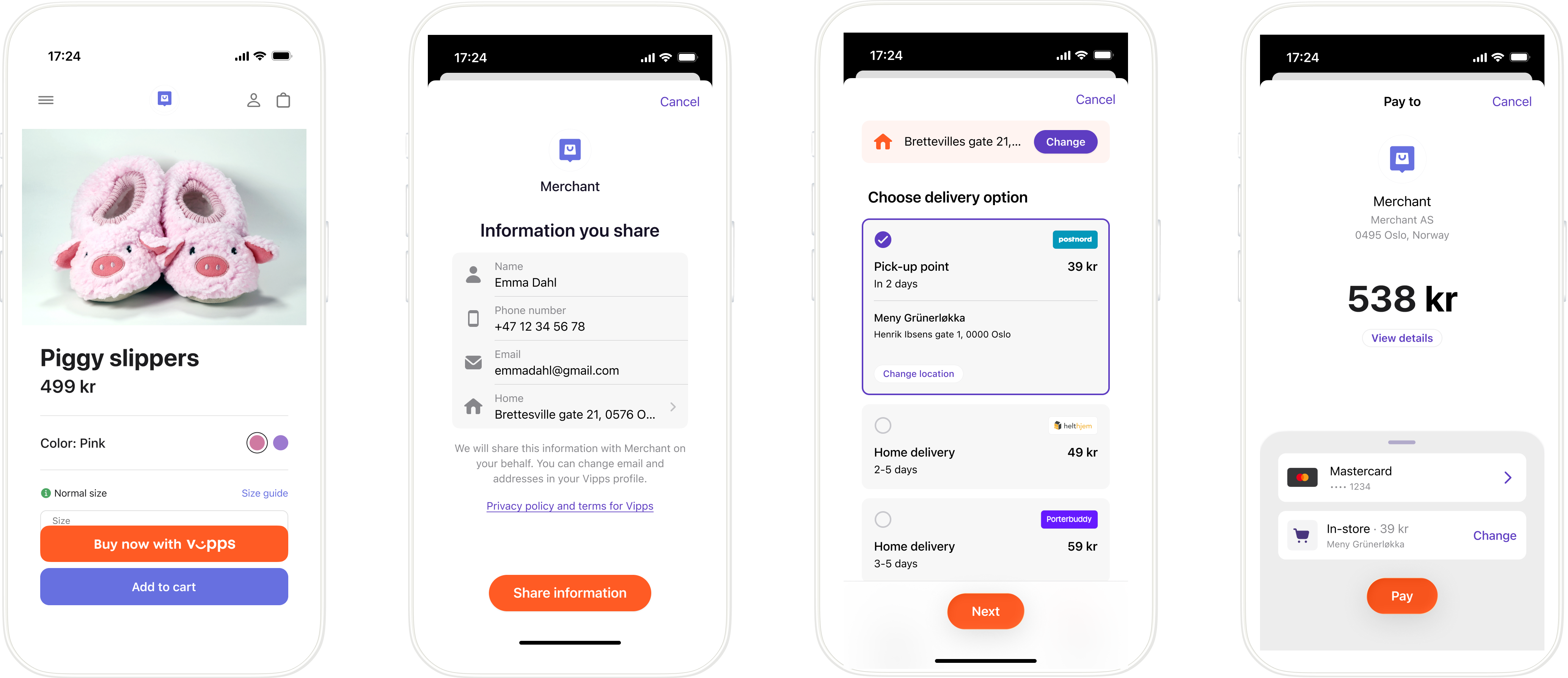
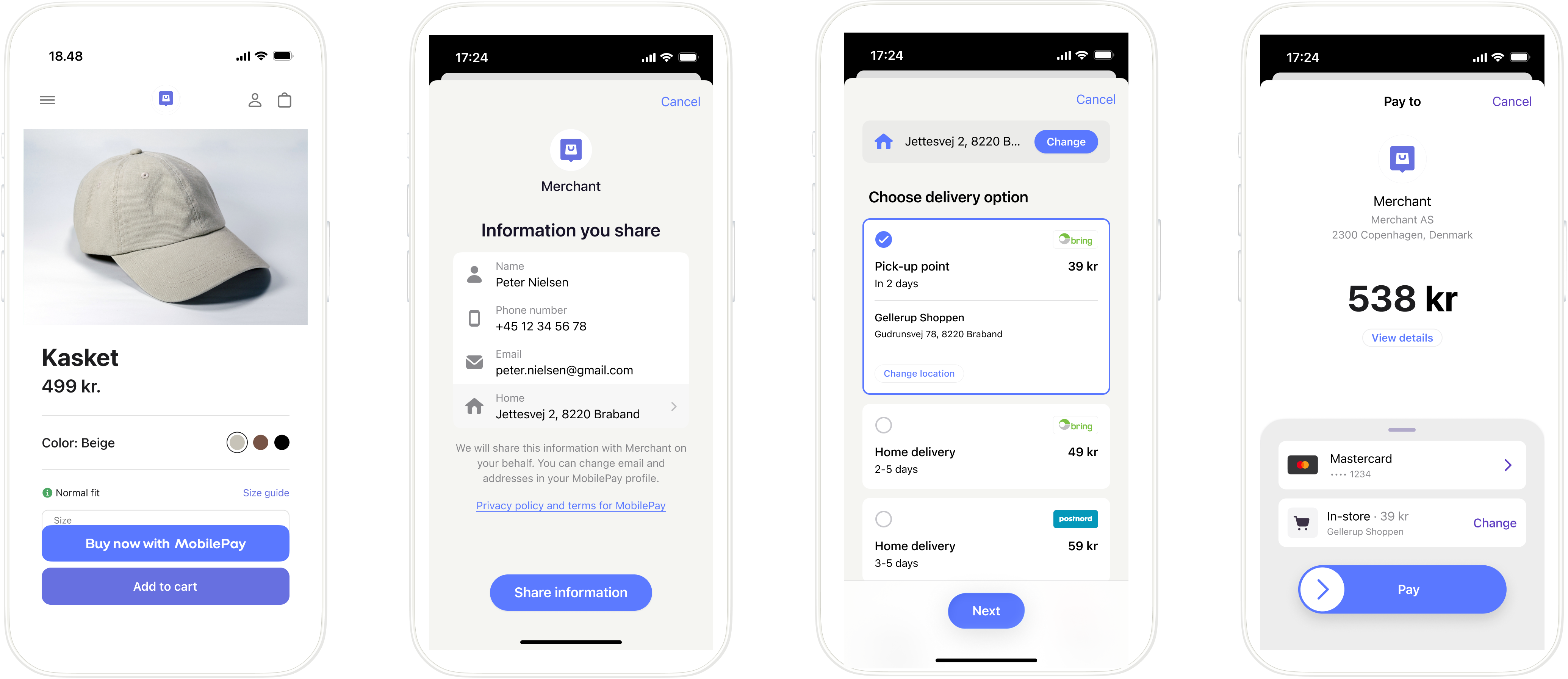
Four-screen Express flow (Vipps or MobilePay): (1) Product page with Express button. (2) Information sharing consent screen. (3) Delivery options with pick-up point and home delivery choices. (4) Payment summary with card and delivery selection. The steps below describe each of these in turn.
Details
1. Customer clicks the Express button
On a merchant's website or app, the customer sees an Express button on the product page or in the shopping cart.
- Vipps
- MobilePay


Screenshot: Online merchant product page showing an Express button (Vipps or MobilePay) alongside the standard checkout options.
Use the Widget SDK to render the button. The SDK serves its appearance, so it always reflects the current design guidelines and the correct brand for your market.
2. The PSP creates an Express payment request
When the customer clicks the Express button, the PSP creates an Express payment request with
POST:/epayment/v1/payments.
The request includes:
paymentMethod.typeset toCARD_PASSTHROUGHpspobject with the PSP's server URL specified in thecallbackUrlfieldprofile.scopemust includeaddress. Also include every other scope you need to deliver the order, usuallyname email phoneNumber address.shipping.fixedOptionsorshipping.dynamicOptionswith available shipping methods
See API guide: Create an Express payment for the full request example and required parameters.
3. Customer opens the Vipps/MobilePay app
The Widget SDK handles the transition from the website to the Vipps or MobilePay app automatically.
If the payment was started on a mobile device, the Vipps or MobilePay app opens automatically.
If the payment was started on a desktop device, a payment dialog opens. The customer enters their phone number and the payment request is sent to the app on their phone.
4. Customer consents to share profile information
Before seeing the payment amount, the customer consents to sharing their address with the merchant.
5. Customer selects their shipping option
The customer sees the available shipping options and can view or change their delivery address and select from the available shipping methods.
For shipping option configuration, including fixed vs. dynamic options, see Shipping options.
6. Customer confirms the total payment amount
Once the customer has selected their shipping option, the total amount (product price + shipping cost) is displayed. The customer reviews the final amount and confirms the payment.
7. The merchant learns the outcome from webhooks and polling
The merchant's system has no visibility into what happens in the app, so a webhook is how it learns that the payment will not be completed:
epayments.payment.aborted.v1: the customer canceled the payment in the app.epayments.payment.expired.v1: the customer did not confirm the payment in time, 10 minutes by default.
On either event, the merchant's system discards the pending order, including the shipping selection made in the app. No card callback follows, and the flow ends here.
Register the webhook before creating the payment, so no event is missed while the customer is paying. See Webhooks for what to register as a PSP and how to handle the events.
8. Vipps MobilePay sends the card token to the PSP
When the customer confirms the payment and selects their card, Vipps MobilePay sends a card token to the PSP's
psp.callbackUrl.
9. The PSP processes the payment and responds to the card callback
The PSP processes the payment through its own acquiring infrastructure using the card token, then responds to the callback within 20 seconds. See Card callback for the request format, HMAC authentication, and expected response.
A RESERVE response reserves the amount for a later capture; it does not move the money. The payment is now
authorized, and the merchant's system can confirm this through the epayments.payment.authorized.v1 webhook.
10. The PSP receives the shipping details
The PSP retrieves the shipping details and profile information by calling
GET:/epayment/v1/payments/{reference} with the
Psp-Id header, or from the ePayment webhook payload.
11. The merchant completes the order and shipping
The merchant uses the provided address and shipping preferences to fulfill and ship the order.
12. The PSP captures the payment
The PSP captures the payment in its own systems. It then sends a capture request to the ePayment API, which does not move any money; it only tells Vipps MobilePay to update the status so the customer sees the payment as captured in their app.
Refunds and cancellations use the same endpoints, but happen later and only if something goes wrong. See Update payment status.
Sequence diagram
Express flow for PSPs
- Customer clicks the Express button.
- PSP creates an Express payment via the ePayment API with card passthrough and shipping options.
- ePayment API returns a redirectUrl and payment reference to the PSP.
- PSP handles the app switch with the redirectUrl. We recommend using the Widget SDK for this.
- ePayment API requests the payment in the customer's Vipps or MobilePay app.
- Customer shares their address, selects a shipping option, and confirms the total amount.
- Webhooks API sends the merchant's system an aborted or expired event if the customer does not accept the payment.
- Merchant's system gets the payment from the ePayment API, as a backup if the webhook is delayed or missed.
- ePayment API returns the current state of the payment, including the shipping details and the user details.
- If the payment was aborted or expired, the merchant returns the customer to the page they started from, and the flow ends.
- If the customer accepts the payment, the ePayment API sends the card token to the PSP's card callback URL.
- PSP processes the payment in its own acquiring systems and responds to the callback with a reserve status within 20 seconds.
- PSP gets the shipping details and profile information from the ePayment API.
- PSP fulfills and ships the order.
- PSP sends the capture status to the ePayment API, so the customer sees it as captured in the app.
For a more detailed sequence diagram that includes dynamic shipping methods, see Express API guide: Sequence diagram.
Limitations
Express has country and currency restrictions that apply the same way for PSPs as for direct merchants. See Limitations.
More information
See API guide: Create an Express payment for more details.