PSP Merchant API guide
Install AI tools
Give your assistant up-to-date guidance for our APIs, with our plugin or without it.
The plugin is still under development. See the AI tools page for details.
- Claude Code
- Cursor
- Codex
- Without installing
Run both commands, in order.
claude plugin marketplace add vippsas/agent-toolkit
claude plugin install vipps-developer@agent-toolkit
Open Settings, then Plugins.
Add vippsas/agent-toolkit as a plugin marketplace, then install the "vipps-developer" plugin.
For the app, add the marketplace "vippsas/agent-toolkit" and then install "vipps-developer". For the CLI, run the following commands.
codex plugin marketplace add vippsas/agent-toolkit
codex plugin add vipps-developer@agent-toolkit
Paste this into any assistant.
Read https://github.com/vippsas/agent-toolkit/blob/main/plugins/vipps-developer/README.md for Vipps MobilePay integration guidance.
For troubleshooting, see the full instructions.
The PSP Merchant API lets Payment Service Providers (PSPs) onboard and manage merchants who accept Vipps MobilePay payments.
👉 Go to MobilePay Online API
Introduction
A PSP can use its existing API keys to access this API, and perform the following:
- List one or all merchants under them
- Create a new merchant under them
- Update an existing merchant
Merchant information
Every merchant you create through this API is connected to their organization number/VAT number. When a merchant is created, you will receive a Merchant Serial Number (MSN), which is the Vipps MobilePay representation of your merchant connected to this organization number. This MSN is what you will need to use later when starting payments and recurring agreements with the ePayment and Recurring APIs. It is possible to create multiple merchants connected to the same organization number.
The information entered when creating merchants will be displayed to end users on the landing page and payment screens.
Merchant name
The name of the store, merchant, app, or service, set in the name field. This will be shown to end-users on the payment screen and receipt, and should be an end-user-centric name that makes it clear which merchant they are paying. The merchant name should be something customers easily recognize, such as "Oslo Coffee" or "Copenhagen Coffee", while the company name might be something like "Nordic restaurant and Coffee bar company LLC".
This name is specified in the name field when you create the merchant.
It can be changed with the update merchant request.
Company name
Company name is the legal name of the business that owns the store, app, or service.
This name is specified in the companyName field when you create the merchant.
It can be changed with an update of the merchant.
Note that if you patch the companyName of a merchant, it will update the companyName for all the merchants connected to that organization number.
Merchant Serial Number
The Merchant Serial Number (MSN) is a number for identifying the merchant (sales unit). For identifying the company, use the organization number.
The MSN is assigned when you create a merchant. This number can't be changed.
Organization number
The organization number is a unique identifier for a business
and can be used to retrieve information from the national registries for the country in which the business operates.
You specify the organization number in the organizationNumber field when you create a merchant.
The organization number will be validated for the Nordic markets (SE, NO, DK, FI) and will throw an error if the organization does not exist in the national registries.
Logo
The merchant logo is displayed to the end-users on the landing page, the payment screens, and the payment receipt.
Using the correct logo for a merchant increases end-user trust and might help to reach a higher conversion rate.
The logo is specified in the logo field as a base64-encoded PNG image when you create the merchant.
Logo requirements:
- Format: PNG
- Minimum size: 100 × 100 pixels
- Maximum size: 1000 pixels on the longest side
- Square images are recommended
The logo can be updated at any time with the update a merchant request. See Update an existing merchant for details.
Terms of service agreement signed
The termsOfServiceAccepted field can be used to inform us that the merchant has seen and signed the Vipps MobilePay terms of service for sharing user information. This field needs to be set to true in order to use the userinfo features of the Recurring and ePayment APIs.
Merchant status
A merchant's status field indicates its current state:
| Status | Description |
|---|---|
ACTIVE | The merchant is active and can process payments. |
DEACTIVATED | The merchant has been deactivated and cannot be reactivated or updated. |
To deactivate a merchant, see Deactivate a merchant.
Customer-facing screens
The merchant information you provide through this API is shown to customers during payment. The following shows which fields appear where.
The landing page
- Vipps
- MobilePay
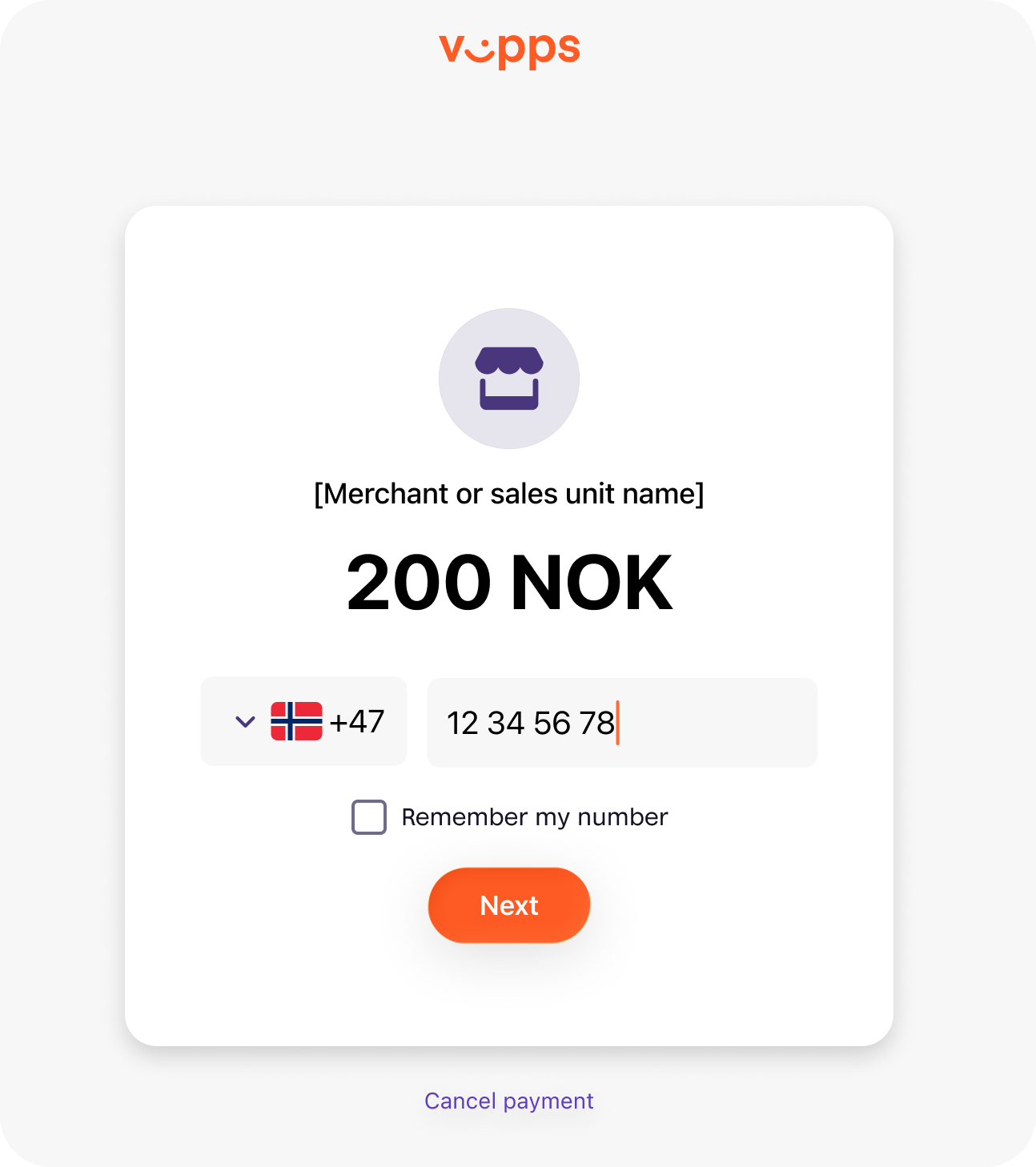
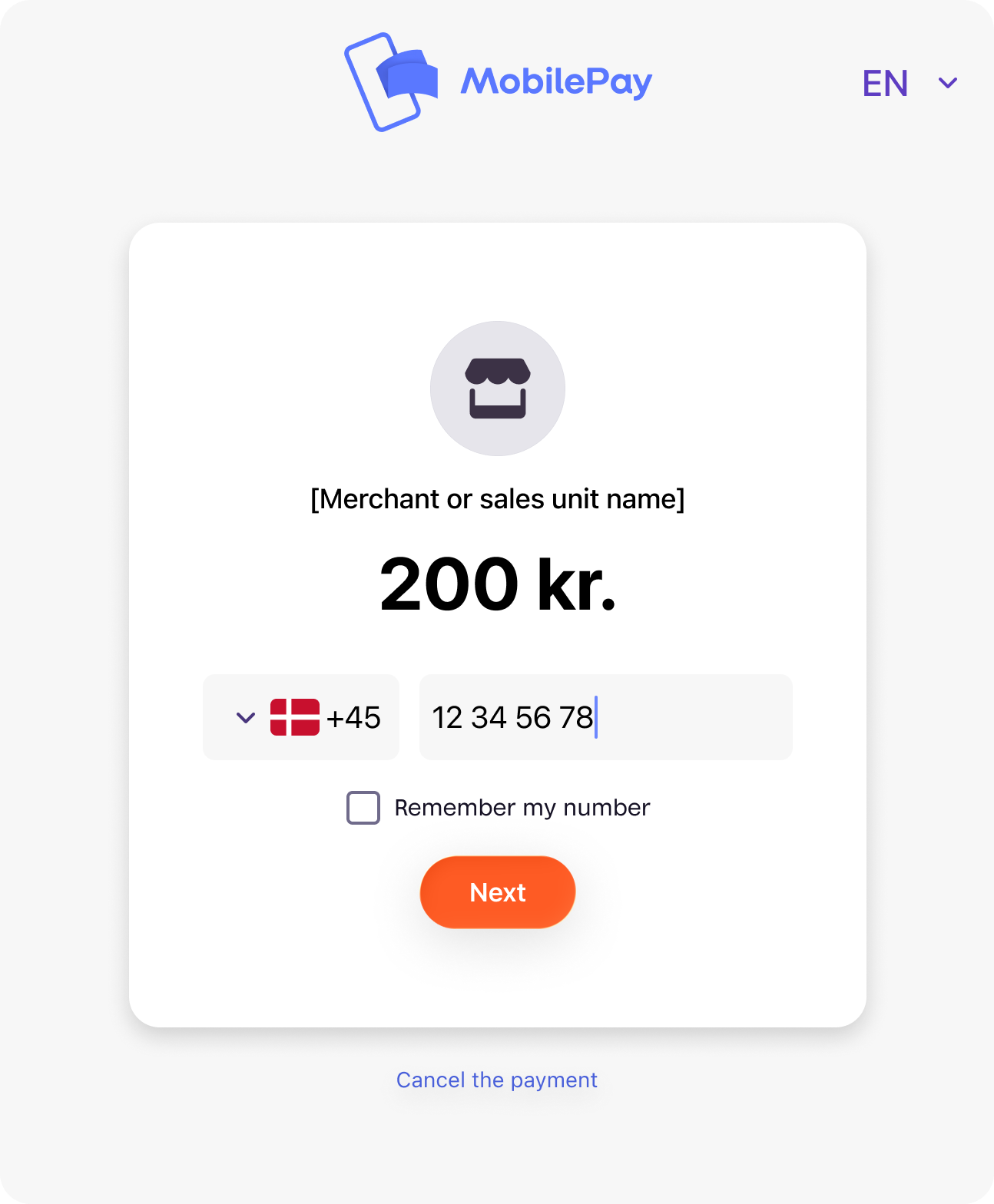
Screenshot: Annotated Vipps or MobilePay landing page with the merchant name field labeled and a phone number input field.
- Merchant name - The name of the store, app, or service. Set via the
namefield. - Customer phone number - This field can be prefilled through a payment API, or can be empty, allowing the customer to enter their own phone number.
The payment screen
- Vipps
- MobilePay
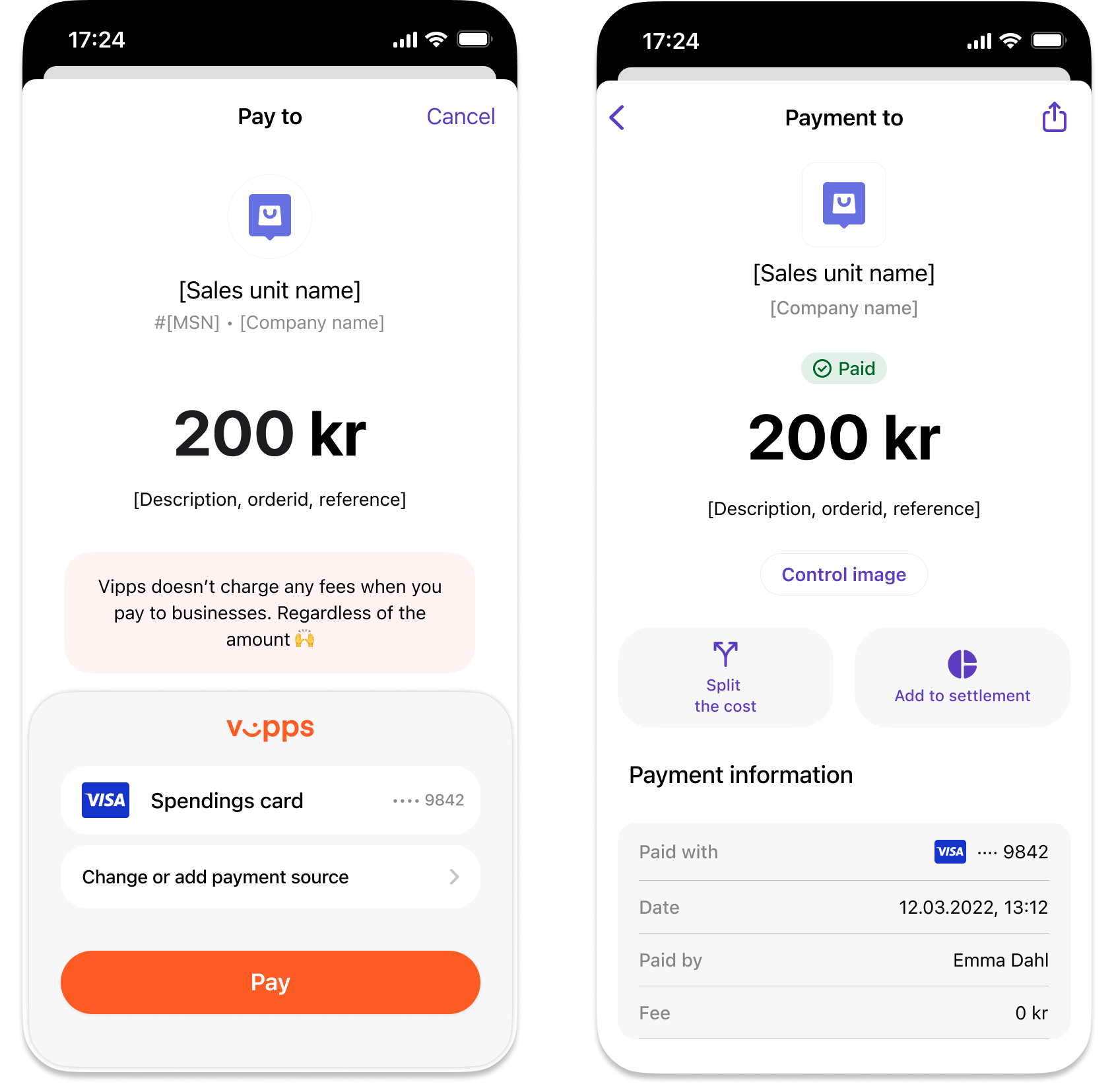
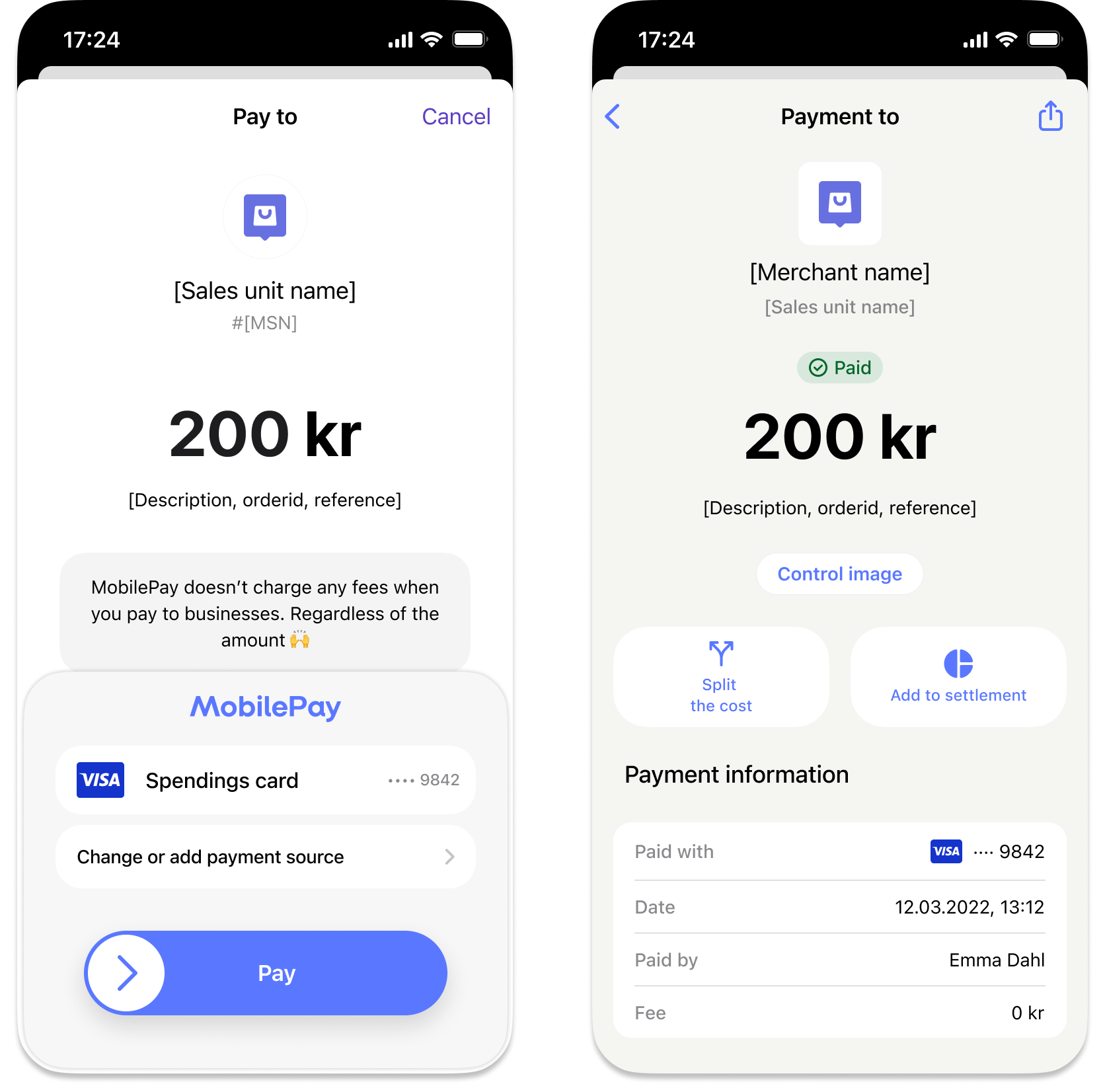
Screenshot: Annotated Vipps or MobilePay app payment screen labeled with logo, merchant name, and order reference, with a Pay button. Receipt shows payment marked as Paid.
- Logo - Set via the
logofield. - Merchant name - The name of the store, app, or service. Set via the
namefield. - Company name - The legal name of the business. Set via the
companyNamefield. - Merchant Serial Number - Identifier for the merchant (sales unit). Assigned by this API when you create the merchant.
- Payment description - Set via the payment initiation request, not via this API.
API requests
Key identifiers
| Value | Scope | Where it comes from |
|---|---|---|
PSP-ID | Your PSP ID, required for all requests | Provided by Vipps MobilePay when you become a partner |
client_id / client_secret | Your PSP account | Provided by Vipps MobilePay when you become a partner |
Ocp-Apim-Subscription-Key | Your PSP account | Provided by Vipps MobilePay when you become a partner |
merchantSerialNumber (MSN) | One specific merchant | Returned by this API when you create a merchant |
Get all merchants
For a JSON response showing all the merchants and their information, send
GET:/merchant-management/psp/v1/merchants.
Example request (API spec):
curl -X GET https://apitest.vipps.no/merchant-management/psp/v1/merchants \
-H "Content-Type: application/json" \
-H "Authorization: Bearer YOUR-ACCESS-TOKEN" \
-H "Ocp-Apim-Subscription-Key: YOUR-SUBSCRIPTION-KEY" \
-H "PSP-ID: YOUR-PSP-ID" \
-H "Vipps-System-Name: acme" \
-H "Vipps-System-Version: 3.1.2" \
-H "Vipps-System-Plugin-Name: acme-webshop" \
-H "Vipps-System-Plugin-Version: 4.5.6"
Example response:
{
    "merchants": [
        {
            "organizationNumber": "123456789",
            "companyName": "Pastry Bakery AS",
            "companyEmail": "info@example.com",
            "merchantSerialNumber": "123456",
            "name": "Fresh Cakes",
            "status": "ACTIVE",
            "email": "info@example.com",
            "website": "https://example.com",
            "createdAt": "2023-08-21T07:54:23.602Z",
            "updatedAt": "2024-09-23T10:34:03.239Z",
            "address": {
                "addressLine1": "Sognefjellsvegen 7",
                "addressLine2": "",
                "city": "Fossbergom",
                "postCode": "2686",
                "country": "NO"
            }
        },
        {
            "organizationNumber": "987654321",
            "companyName": "Blues Brothers AS",
            "companyEmail": "info@example.com",
            "merchantSerialNumber": "223456",
            "name": "Blues Brothers Music",
            "status": "ACTIVE",
            "email": "info@example.com",
            "website": "https://example.com",
            "createdAt": "2023-08-21T07:54:23.602Z",
            "updatedAt": "2024-09-23T10:34:03.239Z",
            "address": {
                "addressLine1": "Kirkegata 1",
                "addressLine2": "",
                "city": "Oslo",
                "postCode": "0154",
                "country": "NO"
            }
        }
    ]
}
You can use the merchantSerialNumber to get information for a specific merchant.
Get information about a specific merchant
For information about a specific merchant, send
GET:/merchant-management/psp/v1/merchants/{merchantSerialNumber}.
Supply the MSN.
This will only provide information from your list of merchants.
Example request (API spec):
curl -X GET https://apitest.vipps.no/merchant-management/psp/v1/merchants/{merchantSerialNumber} \
-H "Content-Type: application/json" \
-H "Authorization: Bearer YOUR-ACCESS-TOKEN" \
-H "Ocp-Apim-Subscription-Key: YOUR-SUBSCRIPTION-KEY" \
-H "PSP-ID: YOUR-PSP-ID" \
-H "Vipps-System-Name: acme" \
-H "Vipps-System-Version: 3.1.2" \
-H "Vipps-System-Plugin-Name: acme-webshop" \
-H "Vipps-System-Plugin-Version: 4.5.6"
Example response:
{
    "organizationNumber": "123456789",
    "companyName": "Pastry Bakery AS",
    "companyEmail": "info@example.com",
    "merchantSerialNumber": "123456",
    "name": "Fresh Cakes",
    "mccCode": null,
    "status": "ACTIVE",
    "email": "info@example.com",
    "website": "https://example.com",
    "createdAt": "2023-08-21T07:54:23.602Z",
    "updatedAt": "2024-09-23T10:34:03.239Z",
    "address": {
        "addressLine1": "Sognefjellsvegen 7",
        "addressLine2": "",
        "city": "Fossbergom",
        "postCode": "2686",
        "country": "NO"
    }
}
Please note: The mccCode may be returned as null; this is expected.
Create a new merchant
To create a new merchant, send
POST:/merchant-management/psp/v1/merchants.
The request requires the Idempotency-Key header — a unique value (e.g., a UUID) that you generate per request.
If a request fails or times out, you can safely retry it using the same key without risk of creating duplicate merchants.
Provide the organization number for the business.
In Norway, the organizationNumber must be 9 digits without spaces, the business
must be active in the Norwegian business registry,
and the organization number must be for the main entity ("hovedenhet"),
not a sub-entity ("underenhet").
For other countries: The organization number, address, and other information are validated as much
as practically possible.
Example request (API spec):
curl -X POST https://apitest.vipps.no/merchant-management/psp/v1/merchants \
-H "Content-Type: application/json" \
-H "Authorization: Bearer YOUR-ACCESS-TOKEN" \
-H "Ocp-Apim-Subscription-Key: YOUR-SUBSCRIPTION-KEY" \
-H "Idempotency-Key: YOUR-IDEMPOTENCY-KEY" \
-H "PSP-ID: YOUR-PSP-ID" \
-H "Vipps-System-Name: acme" \
-H "Vipps-System-Version: 3.1.2" \
-H "Vipps-System-Plugin-Name: acme-webshop" \
-H "Vipps-System-Plugin-Version: 4.5.6" \
--data '{
   "organizationNumber": "123456789",
   "name": "Fresh Cakes",
   "mccCode": "5411",
   "logo": "VGhlIGltYWdlIGdvZXMgaGVyZQ== (truncated)",
   "email": "info@example.com",
   "website": "https://example.com",
   "address": {
      "addressLine1": "Sognefjellsvegen 7",
      "addressLine2": "",
      "city": "Fossbergom",
      "postCode": "2686",
      "country": "NO"
   },
   "companyName": "Pastry Bakery AS",
   "companyEmail": "info@example.com"
}'
For the country field, we support all ISO 3166 country codes.
The response contains the assigned merchantSerialNumber (MSN) for the new merchant:
{
   "merchantSerialNumber": "123456"
}
Store this MSN — it is required to identify the merchant in all subsequent API calls.
Update an existing merchant
To update a merchant, send
PATCH:/merchant-management/psp/v1/merchants/{merchantSerialNumber}.
Provide the MSN and update the details in the body section.
You can update any of the following fields:
name- Merchant namelogo- Base64-encoded PNG imageemail- Contact email for the merchantwebsite- Merchant website URLaddress- Address informationmccCode- Merchant category code (ISO 18245, four digits)companyName- Legal name of the businesstermsOfServiceAccepted- Whether the merchant has accepted terms of service (needed for login, userinfo, and express features)marketPlaceId- Marketplace ID for invoicing (requires a special contract)
Example: Update merchant name (API spec):
curl -X PATCH https://apitest.vipps.no/merchant-management/psp/v1/merchants/{merchantSerialNumber} \
-H "Content-Type: application/json" \
-H "Authorization: Bearer YOUR-ACCESS-TOKEN" \
-H "Ocp-Apim-Subscription-Key: YOUR-SUBSCRIPTION-KEY" \
-H "PSP-ID: YOUR-PSP-ID" \
-H "Vipps-System-Name: acme" \
-H "Vipps-System-Version: 3.1.2" \
-H "Vipps-System-Plugin-Name: acme-webshop" \
-H "Vipps-System-Plugin-Version: 4.5.6" \
--data '{"name": "Bakery in Fossbergom"}'
Example: Update logo (API spec):
curl -X PATCH https://apitest.vipps.no/merchant-management/psp/v1/merchants/{merchantSerialNumber} \
-H "Content-Type: application/json" \
-H "Authorization: Bearer YOUR-ACCESS-TOKEN" \
-H "Ocp-Apim-Subscription-Key: YOUR-SUBSCRIPTION-KEY" \
-H "PSP-ID: YOUR-PSP-ID" \
-H "Vipps-System-Name: acme" \
-H "Vipps-System-Version: 3.1.2" \
-H "Vipps-System-Plugin-Name: acme-webshop" \
-H "Vipps-System-Plugin-Version: 4.5.6" \
--data '{"logo": "YOUR-BASE64-ENCODED-PNG"}'
You can update multiple fields in a single request by including them all in the request body.
Deactivate a merchant
To deactivate a merchant, send
PATCH:/merchant-management/psp/v1/merchants/{merchantSerialNumber}
with deactivate set to true.
Example (API spec):
curl -X PATCH https://apitest.vipps.no/merchant-management/psp/v1/merchants/{merchantSerialNumber} \
-H "Content-Type: application/json" \
-H "Authorization: Bearer YOUR-ACCESS-TOKEN" \
-H "Ocp-Apim-Subscription-Key: YOUR-SUBSCRIPTION-KEY" \
-H "PSP-ID: YOUR-PSP-ID" \
-H "Vipps-System-Name: acme" \
-H "Vipps-System-Version: 3.1.2" \
-H "Vipps-System-Plugin-Name: acme-webshop" \
-H "Vipps-System-Plugin-Version: 4.5.6" \
--data '{"deactivate": true}'
Once deactivated, the merchant cannot be reactivated or updated through the API.
If the merchant's organizationNumber or other immutable fields need to change, you must deactivate the existing merchant and create a new one with a new MSN.
Deactivation is permanent and cannot be undone.
Error responses
Error responses follow the RFC 7807 Problem Details format:
{
   "type": "https://example.net/validation-error",
   "title": "Postcode validation error",
   "status": 400,
   "detail": "Postcode must be four digits",
   "instance": "https://example.net/validation-error/postcode"
}
| Field | Description |
|---|---|
type | A URI identifying the problem type |
title | A short, human-readable summary of the problem |
status | The HTTP status code |
detail | A human-readable explanation to help correct the problem |
instance | A URI identifying this specific occurrence of the problem |
Questions
The API Reference contains more details for each endpoint.
If you have any questions, please reach out to us:
- Directly to your Partner Manager
- psp@vippsmobilepay.com