How agreement sign-up works for PSPs
Install AI tools
Give your assistant up-to-date guidance for our APIs, with our plugin or without it.
The plugin is still under development. See the AI tools page for details.
- Claude Code
- Cursor
- Codex
- Without installing
Run both commands, in order.
claude plugin marketplace add vippsas/agent-toolkit
claude plugin install vipps-developer@agent-toolkit
Open Settings, then Plugins.
Add vippsas/agent-toolkit as a plugin marketplace, then install the "vipps-developer" plugin.
For the app, add the marketplace "vippsas/agent-toolkit" and then install "vipps-developer". For the CLI, run the following commands.
codex plugin marketplace add vippsas/agent-toolkit
codex plugin add vipps-developer@agent-toolkit
Paste this into any assistant.
Read https://github.com/vippsas/agent-toolkit/blob/main/plugins/vipps-developer/README.md for Vipps MobilePay integration guidance.
For troubleshooting, see the full instructions.
A step-by-step walkthrough of a subscription agreement sign-up using card passthrough, from the merchant's website to the active agreement.
Details
- Vipps
- MobilePay
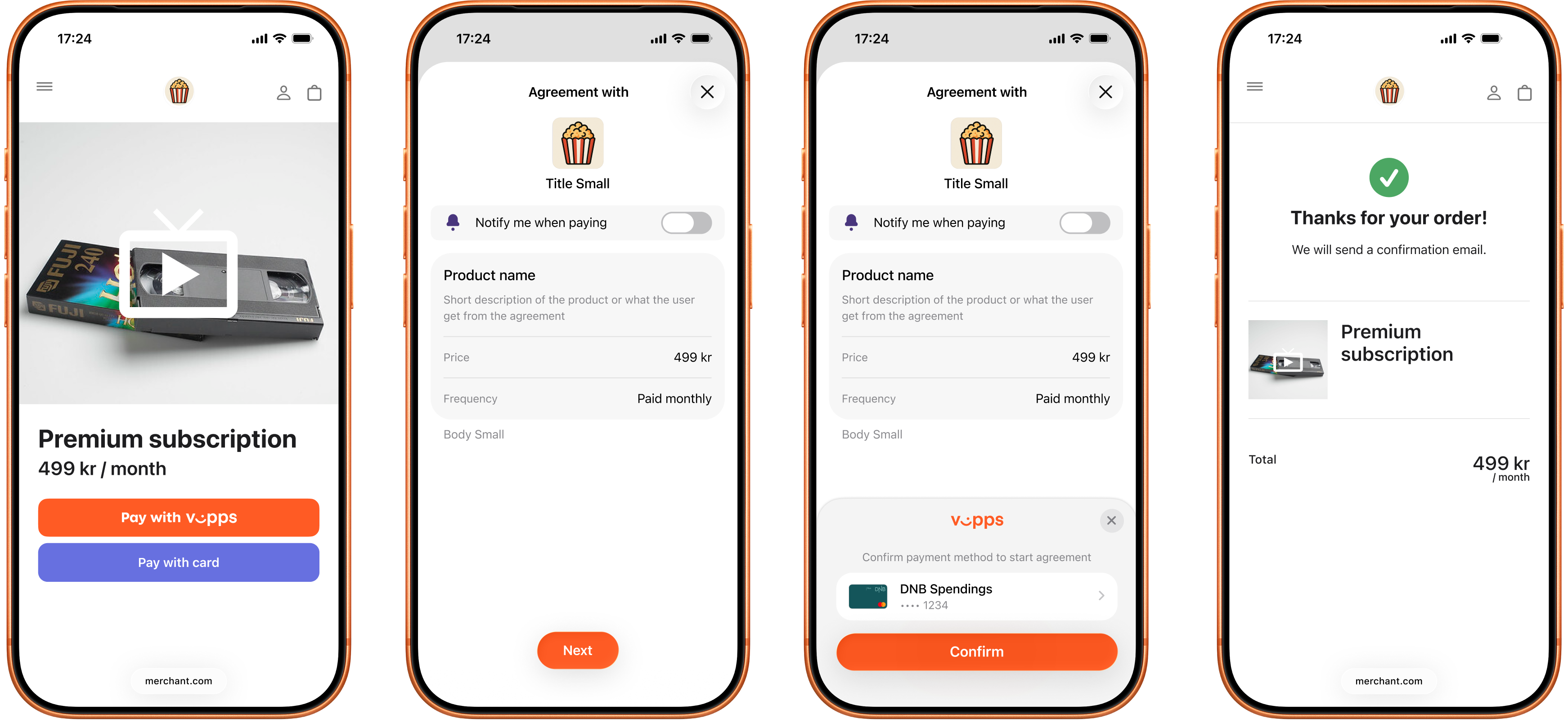
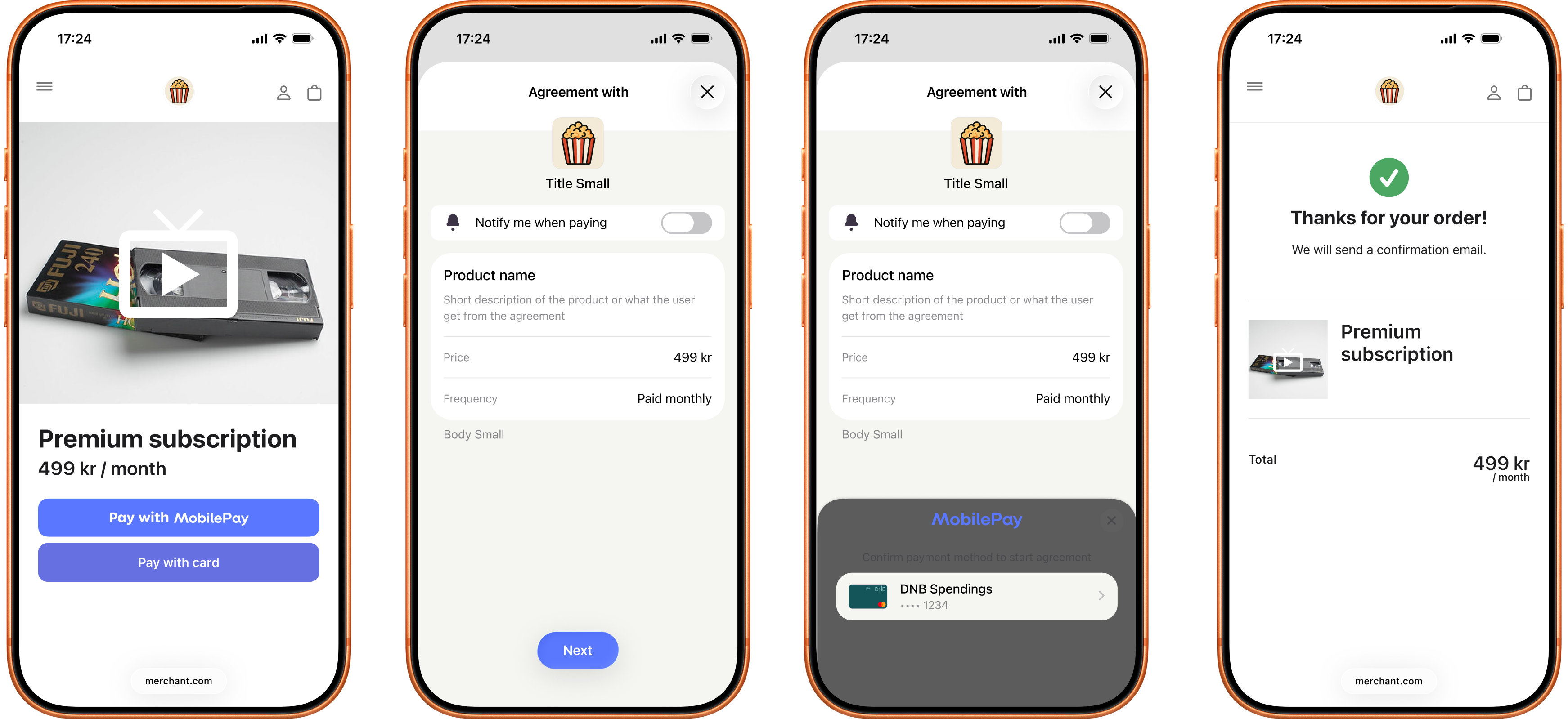
Screenshot: Payment agreement sign-up flow — screen 1: merchant website shows a "Premium subscription" with a Pay with Vipps button; screen 2: the app (Vipps or MobilePay) displays an "Agreement with" the merchant showing the product name, frequency, and a "Notify me when paying" toggle, with a Next button; screen 3: the same agreement screen with a payment method confirmation sheet showing the selected card and a Confirm button; screen 4: the merchant website shows an order confirmation with a summary of the Premium subscription.
1. Customer selects a subscription
On the merchant's website or app, the customer chooses to subscribe and pay with Vipps or MobilePay.
2. The PSP drafts an agreement
The PSP drafts an agreement with
POST:/recurring/v3/agreements, including
the psp object with a callbackUrl. An optional initialCharge sets the upfront payment
amount — if omitted, a zero-amount verification is performed instead. See
Agreement sign-up for the full request details.
The request must include the Merchant-Serial-Number header for the merchant/sales unit the PSP is operating on
behalf of. Use the merchant's MSN, not the PSP's own MSN.
3. Customer opens the Vipps or MobilePay app
If the agreement was initiated on a mobile device, the Vipps or MobilePay app opens automatically.
If initiated on a desktop device, the landing page opens. The customer enters their phone number and the agreement request is sent to their phone.
4. Customer selects a card and approves the agreement
The customer reviews the agreement terms, selects a card stored in their Vipps/MobilePay app, and confirms.
5. Vipps MobilePay sends the card token to the PSP
Vipps MobilePay posts the card token to the PSP's callbackUrl. The PSP processes the CIT (Customer-Initiated
Transaction) and responds within 20 seconds to confirm the agreement. See
Card callback.
6. The customer is redirected and the agreement is active
The customer is redirected to the merchant's merchantRedirectUrl and sees a confirmation. The PSP can now start
creating charges according to the agreement terms.
Sequence diagram
PSP merchant agreement sign-up flow
- PSP creates an agreement with Vipps MobilePay (POST /recurring/v3/agreements with psp).
- Vipps MobilePay returns the vippsConfirmationUrl, agreementId, and chargeId to the PSP.
- PSP presents the URL to the user.
- User selects a card and confirms the agreement with Vipps MobilePay.
- Vipps MobilePay posts a card token to the PSP's callbackUrl.
- PSP processes the payment.
- PSP returns 200 OK with status RESERVE to Vipps MobilePay.
- Vipps MobilePay notifies the user that the agreement is signed.
- User is redirected to the merchantRedirectUrl.
- PSP begins charging the user.
More information
This walkthrough shows a fixed price agreement, but the Recurring API supports several agreement types — fixed price, variable price, flexible price, campaigns, and agreements with an initial charge — and all of them work with card passthrough. For illustrated examples of each, see Payment Agreements in the Recurring API documentation.
For technical details, see the Recurring PSP API guide.