Merchant callback QR codes
For a visual walkthrough of the merchant callback QR flow, see How the QR API works with merchant callback.
There is an issue that the test app requires you to go back to the home screen after scanning the QR. There, you will see the payment request when it is initiated. This is not an issue in production.
A merchant callback QR is a special type of QR code that sends a message (i.e., "callback") when it is scanned in the Vipps or MobilePay app. The unique ID for the QR is provided in the callback message, enabling you to identify which QR code has been scanned. When you get the message, you know that someone is at your location and trying to pay with Vipps MobilePay. You can then use their customer token to initiate a payment which they can approve immediately in their Vipps or MobilePay app.
Merchant callback QRs are the best solution for self-checkout, vending machines, or similar situations where there is no cashier, buttons, or other ways of letting the user communicate how they want to pay.
Before the merchant will receive any event notifications, they need to subscribe to the user.checked-in.v1 webhook.
The following endpoints are provided:
- Get all merchant callback QRs
- Get callback QR by ID
- Create or update callback QR
- Delete callback QR
- Create or Update MobilePay QR code
Merchant callback QR code flow
API reference
API inputs
| Parameter | Description |
|---|---|
merchantQrId | Merchant defined parameter. Together with MerchantSerialNumber, it uniquely identifies the QR code. |
locationDescription | A description of where the QR code will be used. It will be shown in the app when the user has scanned the QR code. Max length is 36 characters. |
qrImageFormat | The image format of the QR code returned by the API. Can be either PNG or SVG. Default is SVG. See QR code formats for more details. |
qrImageSize | The resolution of the QR code returned. Only relevant in conjunction with qrImageFormat set to PNG. Default is 1024 which results in a PNG image in 1024x1024 resolution. See QR code formats for more details. |
category | Optional category for the QR code that will control the message displayed in the app while waiting for the payment to show. |
API outputs
Only those parameters that are not already described are shown here.
| Parameter | Description |
|---|---|
qrImageUrl | A link to the image containing the QR code. |
qrContent | The content of the QR code. It is the text that is embedded in the QR code which is scanned by the Vipps or MobilePay app. |
Even though the QR itself doesn't expire, the qrImageUrl URL may change due to security concerns.
However, you will be able to get the new image link using the
Get callback QR by ID endpoint.
How to create a merchant callback QR code
To create a merchant callback QR code, call the
PUT:/qr/v1/merchant-callback/{merchantQrId} endpoint.
The endpoint takes the merchantQrId as a path parameter and requires a request body containing the locationDescription parameter.
An example body looks like this:
{
  "locationDescription": "Kiosk",
  "category": "IN_STORE"
}
If the endpoint succeeds, the QR code has been created.
Please note: The QR code will not be returned from the endpoint. Instead, the merchant needs to call the dedicated GET endpoints described below.
Setting category
Currently, two QR code categories exist.
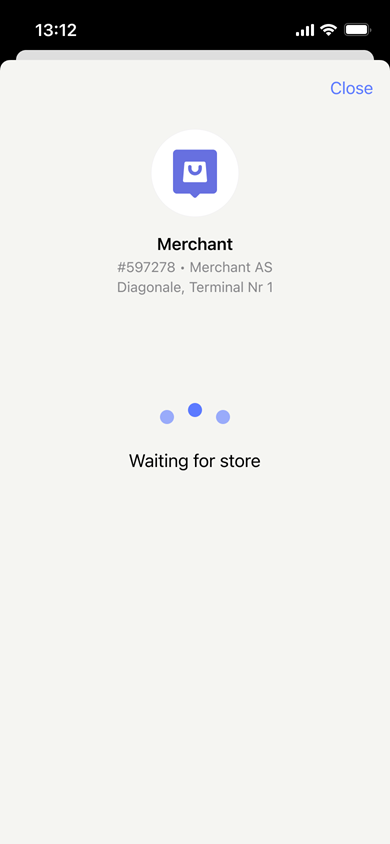
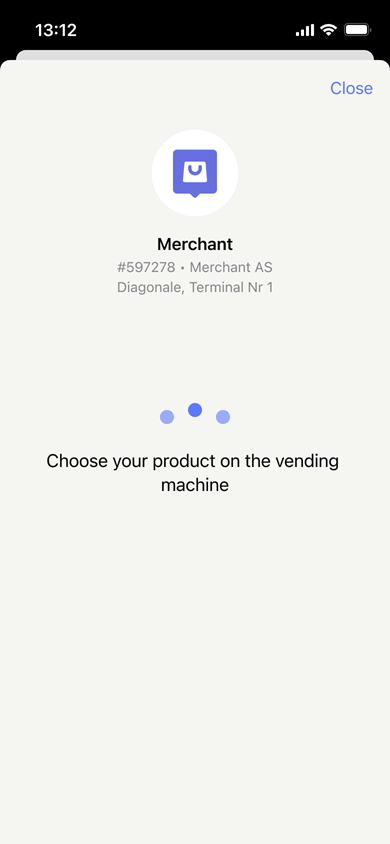
IN_STORE is the default category, and VENDING is secondary. The waiting screen will be shown in the apps like this:
IN_STORE | VENDING |
|---|---|
 |  |
How to update or delete a merchant callback QR code
The QR code is based on the merchantQrId and merchantSerialNumber. These properties will never change.
So the only properties that can be updated on a QR code are category and locationDescription.
To update the properties, just call the PUT:/qr/v1/merchant-callback/{merchantQrId} endpoint again with the new values.
The QR code will be updated accordingly.
If a QR code is not needed any more, it is best practice to delete it. There are at least two reasons for that:
- If a user scans the QR code, they will be informed that the QR code is not found. This is preferred to having the user waiting with no knowledge the QR code is no longer in use.
- When the merchant needs to print all QR codes for a particular
merchantSerialNumber, then QR codes that are not in use will not be printed.
To delete a QR code, the merchant will simply have to call the endpoint
DELETE:/qr/v1/merchant-callback/{merchantQrId}.
Fetching the merchant callback QR codes
There are two endpoints for fetching created QR codes. One for getting a specific QR code, and one for fetching all QR codes belonging to a merchantSerialNumber.
Both endpoints support optional query parameters for customizing the returned QR code:
qrImageFormatto choose the image formatqrImageSizeto set the size.
See QR code formats for all available options.
To fetch a single QR code, call the endpoint:
GET:/qr/v1/merchant-callback/{merchantQrId}?qrImageFormat=PNG&qrImageSize=500.
An example of the response looks like this:
{
  "merchantSerialNumber": "12345",
  "merchantQrId": "27072f82-c4b6-49cd-9838-10f21d87496e",
  "locationDescription": "Kiosk",
  "qrImageUrl": "https://qr.vipps.no/generate/qr.png?...",
  "qrContent": "https://qr.vipps.no/..."
}
The QR code image can be printed, or it can be displayed on a device that faces the customer.
The image is located at the qrImageUrl.
To fetch all QR codes belonging to a merchantSerialNumber, the merchant needs to call the endpoint: GET:/qr/v1/merchant-callback?qrImageFormat=PNG&qrImageSize=500.
The only difference is the absence of the merchantQrId path parameter.
An example of a response from this endpoint is the same as the previous, except it returns a list:
{
  [
    {
      "merchantSerialNumber": "12345",
      "merchantQrId": "27072f82-c4b6-49cd-9838-10f21d87496e",
      "locationDescription": "Kiosk",
      "qrImageUrl": "https://qr.vipps.no/generate/qr.png?...",
      "qrContent": "https://qr.vipps.no/..."
    },
    {
      "merchantSerialNumber": "12345",
      "merchantQrId": "b1482233-17a1-434d-bcd1-6ea38b15eddb",
      "locationDescription": "Bakery",
      "qrImageUrl": "https://qr.vipps.no/generate/qr.png?...",
      "qrContent": "https://qr.vipps.no/..."
    }
  ]
}
The endpoint that returns a list is nice to have if the merchant has many QR codes in the same location. It will make printing easier.
Callback from QR
Webhooks are essential for merchant callback QR codes. Without a webhook subscription, you won't receive notifications when customers scan your QR codes.
To receive notifications when a customer scans your merchant callback QR code, you must:
- Set up webhooks with the Webhooks API
- Subscribe to the
user.checked-in.v1event
When a customer scans your QR code, you'll receive a webhook notification.
Customer token exchange endpoint
When a user scans a merchant callback QR code with their Vipps or MobilePay app, your system will receive a customer token that can be exchanged for the user's phone number.
For example:
-
When a user scans a merchant callback QR code, the webhook callback payload contains a
customerTokenstring. -
Supply the token in the POST:/v1/exchange/customer request:
curl -X POST https://apitest.vipps.no/qr/v1/exchange/customer \
-H "Content-Type: application/json" \
-H "Authorization: Bearer YOUR-ACCESS-TOKEN" \
-H "Ocp-Apim-Subscription-Key: YOUR-SUBSCRIPTION-KEY" \
-H "Merchant-Serial-Number: YOUR-MSN" \
-H "Vipps-System-Name: acme" \
-H "Vipps-System-Version: 3.1.2" \
-H "Vipps-System-Plugin-Name: acme-webshop" \
-H "Vipps-System-Plugin-Version: 4.5.6" \
-d '{
    "customer": {
      "customerToken": "qwieyiqwyeiuqwyeiuywqiueyiwquy"
    }
}' -
You will get a response, like this:
{
"msisdn": "4712345678",
"timestamp": 1634025600
}
API inputs
Parameter Description customerJSON object containing customerToken.requestedDataAn array of strings where you enter the type of data you want in return. There is currently only one option, so this field is optional. Example: ["MSISDN"]. API outputs
Parameter Description msisdnThe user's phone number. timestampThe UTC timestamp, in seconds, indicating when the QR code was scanned.