Merchant redirect QR codes
For a visual walkthrough of the merchant redirect QR flow, see How the QR API works with merchant redirect.
Merchant redirect QR codes allow you to make printable QR codes that redirect the user to your webpage. This can be used for one-offs, such as TV commercials; as well as for permanent use cases, such as stickers, billboards, and magazine ads.
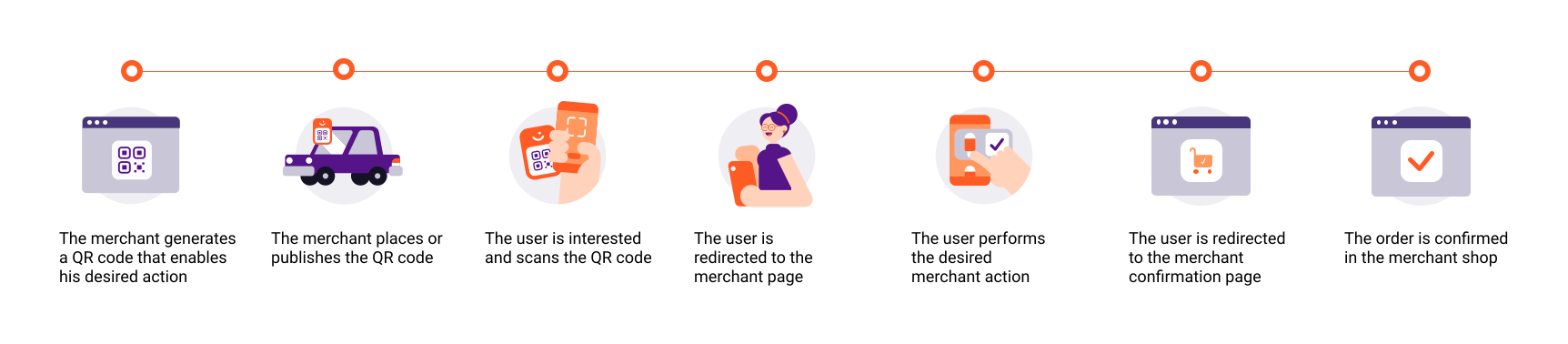
The QR code, when scanned from the native camera or the Vipps MobilePay scanner, will take the customer straight to the web page.
Merchant redirect QR codes don't time out, and they don't require the Vipps or MobilePay app to be installed.
The QR API allows for creating, updating, getting, and deleting of merchant redirect QR codes. You can later change the URL through the API without generating a new QR code.
Below is an example merchant redirect QR:
- Vipps
- MobilePay


Basic flow for merchant redirect QR
-
Create a merchant redirect QR
-
Later, if needed, you can:
-
Get the QR by ID
-
Update the URL to the QR
-
Delete the QR
-
See the quick start guide for an example.
Creation of merchant redirect QR
To create a merchant redirect QR, make a HTTPS POST to:
POST:/qr/v1/merchant-redirect
An example body like this:
{
  "id": "billboard_1",
  "redirectUrl": "https://example.com/myProduct"
}
Will return a response like this:
{
  "id": "billboard_1",
  "url":"https://qr-generator-prod-app-service.azurewebsites.net/qr-generator/v1?token=eyJhbGciOiJIUzI1NiIsInR5cCI6IkpXVCJ9...."
}
The id parameter is required, and is defined by the merchant. You can later use this ID to update the merchant redirect QR codes
Updating and deletion of QR codes
Updating QR codes is a very similar procedure to creating them. When a QR code
is updated, nothing happens to the QR itself. But, when the QR is scanned, the
user will be redirected to the new URL. The change is instantaneous. To update
the QR code, make
PUT:/qr/v1/merchant-redirect/{id}
request with the new redirectUrl in the request body:
{
  "id": "billboard_1",
  "redirectUrl": "https://example.com/completelyDifferentProductThanBefore"
}
And the response will be exactly the same as for generating the QR the first time - and it will still point to the same image.
{
  "id": "billboard_1",
  "url":"https://qr-generator-prod-app-service.azurewebsites.net/qr-generator/v1?token=eyJhbGciOiJIUzI1NiIsInR5cCI6IkpXVCJ9...."
}
The
DELETE:/qr/v1/merchant-redirect/{id}
does what one might expect, it deletes the QR. Once deleted, merchants can generate a new QR with the same ID but the already-printed-QR will never work again.
In addition to the DELETE-endpoint, it is also possible to add a ttl-attribute in the original POST-request.
This attribute sets how many seconds the QR will live, before it is deleted permanently.
If you want the same QR in different formats, perform GET calls on the same id with different accept headers.
See QR code formats for details on image formats, sizes, and customization options.