One-time payment QR codes
For a visual walkthrough of the one-time payment QR flow, see How the QR API works with one-time payment.
You can use the QR API to generate QR codes that can be scanned by a customer in a physical store setting. Once the QR code is scanned, the Vipps or MobilePay app will automatically open with the payment ready for approval. This avoids them needing to provide their phone number.
These QR codes are generated for each unique payment.
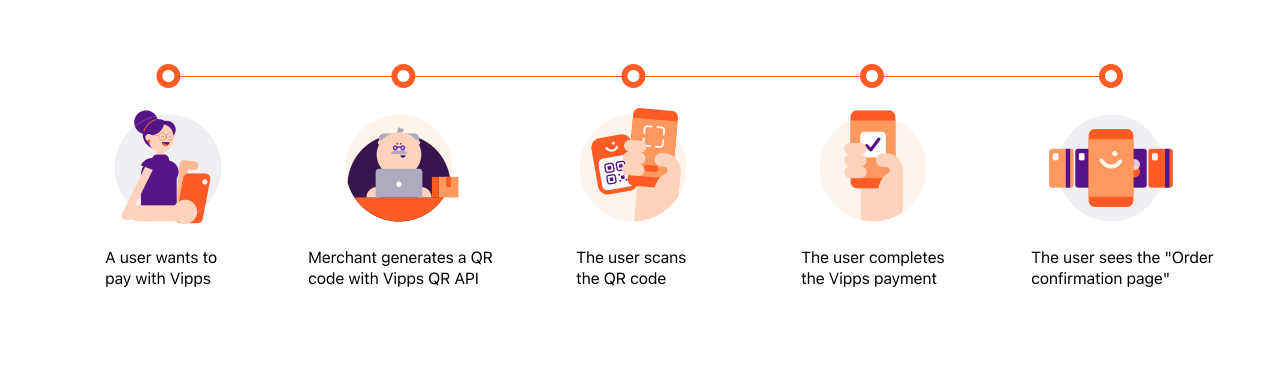
The QR code, when scanned from either the native camera or the Vipps or MobilePay app, will automatically open an eCom or Recurring payment in the app, where the payment can be completed.
Every payment needs a unique orderId. See
Recommendations for reference and orderId.
The purchase will time out after 10 minutes, so it's not possible to print these QR codes.
One-Time Payment QR code with ePayment API
One-time payment QR is already included as a feature in the ePayment API.
Basic flow for One-Time Payment QR code with eCom or Recurring payments
- Initiate an eCom or Recurring payment
- Receive the payment URL as response
- Post the payment URL to the QR API
- Receive a URL to a QR code in desired format (PNG or SVG)
See the Quick start guide for examples of generating QR codes.
Initiate a payment with the eCom API
Before creating the QR code you must initiate a payment with the eCom API as is described in depth in the eCom API guide.
The request to the eCom initiate endpoint
POST:/ecomm/v2/payments
will return a response like this (the url is truncated, but the format is correct):
{
  "orderId": "acme-shop-123-order123abc",
  "url": "https://api.vipps.no/dwo-api-application/v1/deeplink/vippsgateway?v=2&token=eyJraWQiOiJqd3RrZXkiLC <snip>"
}
Be aware that the URL is only valid for 10 minutes.
Creation of One-Time Payment QR code
Now that you have the url from the eCom API you can create a QR code
using the following endpoint:
Example of a request for a QR code image using Accept: image/png
(see QR code formats for more options):
Headers:
Authorization: Bearer eyJ0eXAiOiJKV1QiLCJhbGciOiJSUzI1Ni <snip>
Ocp-Apim-Subscription-Key: 0f14ebcab0ec4b29ae0cb90d91b4a84a
Accept: image/png
Merchant-Serial-Number: 123456
Vipps-System-Name: Acme Commerce
Vipps-System-Version: 3.1.2
Vipps-System-Plugin-Name: acme-pos
Vipps-System-Plugin-Version 4.5.6
Body:
{
  "url": "https://api.vipps.no/dwo-api-application/v1/deeplink/vippsgateway?v=2&token=eyJraWQiOiJqd3RrZXkiLC <snip>"
}
The response will be similar to this, where the URL in the body of the response will be a link to the image as defined in the accept header:
{
  "url":"https://qr-generator-prod-app-service.azurewebsites.net/qr-generator/v1?token=eyJhbGciOiJIUzI1NiIsInR5cCI6IkpXVCJ9....",
  "expiresIn": 247
}
Please note: The expiresIn value is in seconds.
Polling for payment status
One-time payment QR codes use polling to check payment status, not webhooks. This is because the payment is initiated directly in the app when the QR is scanned.
You will need to get the result of the payment by polling with the
GET:/ecomm/v2/payments/{orderId}/details request.
In a physical context, we recommend a polling interval of one second. See polling guidelines for information.
Once the QR code has been opened in the app, the transactionId
field in transactionLogHistory will be set (it will not exist before the
QR code has been scanned). Once this field is set, you can safely show a
waiting for user message on your POS screen while the user finishes the payment.
Body once the QR has been opened by a user
{
    "orderId": "acme-shop-123-order123abc",
    "transactionLogHistory": [
      {
        "amount": 20000,
        "operation": "INITIATE",
        "operationSuccess": true,
        "timeStamp": "2018-11-14T15:21:04.697Z",
        "transactionId": "5001420062",
        "transactionText": "One pair of socks",
      }
    ]
}