How the QR API works with personal QR
Install AI tools
Give your assistant up-to-date guidance for our APIs, with our plugin or without it.
The plugin is still under development. See the AI tools page for details.
- Claude Code
- Cursor
- Codex
- Without installing
Run both commands, in order.
claude plugin marketplace add vippsas/agent-toolkit
claude plugin install vipps-developer@agent-toolkit
Open Settings, then Plugins.
Add vippsas/agent-toolkit as a plugin marketplace, then install the "vipps-developer" plugin.
For the app, add the marketplace "vippsas/agent-toolkit" and then install "vipps-developer". For the CLI, run the following commands.
codex plugin marketplace add vippsas/agent-toolkit
codex plugin add vipps-developer@agent-toolkit
Paste this into any assistant.
Read https://github.com/vippsas/agent-toolkit/blob/main/plugins/vipps-developer/README.md for Vipps MobilePay integration guidance.
For troubleshooting, see the full instructions.
Enable fast, contactless in-store payments by scanning your customer's personal QR code from their Vipps or MobilePay app. This allows you to identify customers and send payment requests without asking for their phone number.
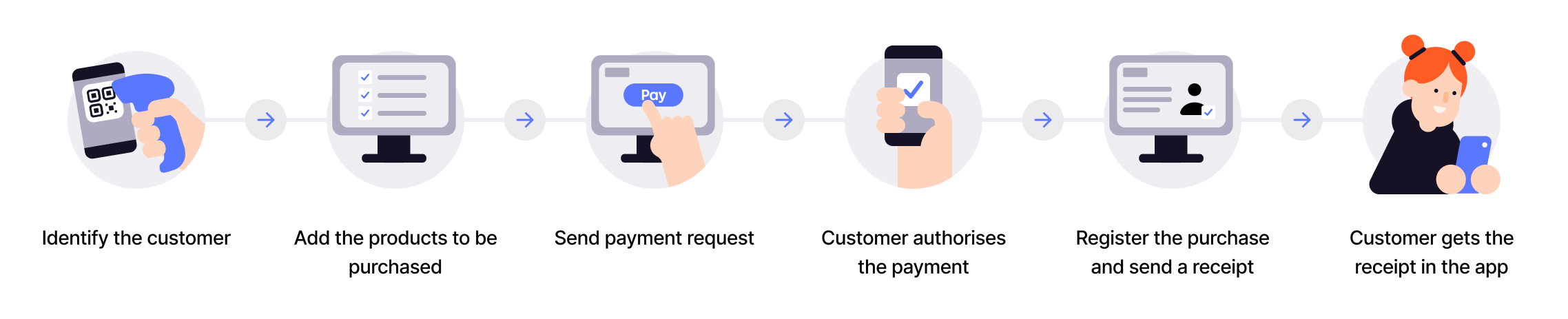
Flow diagram: 6-step in-store payment process. (1) Identify the customer (scan their personal QR). (2) Add the products to be purchased. (3) Send payment request. (4) Customer authorizes the payment. (5) Register the purchase and send a receipt. (6) Customer gets the receipt in the app.
1. Customer shows their personal QR code
Every Vipps and MobilePay user has a personal QR code available in their app. The customer opens their app and displays their personal QR code.
- Vipps
- MobilePay


Screenshot: Personal QR code screen in the app (Vipps or MobilePay), showing the customer's unique QR code ready to be scanned at checkout.
2. Merchant scans the QR code
The cashier or the customer uses a QR scanner to scan the personal QR code. This can be done with:
- Customer-facing scanner - A permanent scanner positioned for self-service
- Cashier scanner - A handheld or wired scanner operated by store staff
- Vipps
- MobilePay
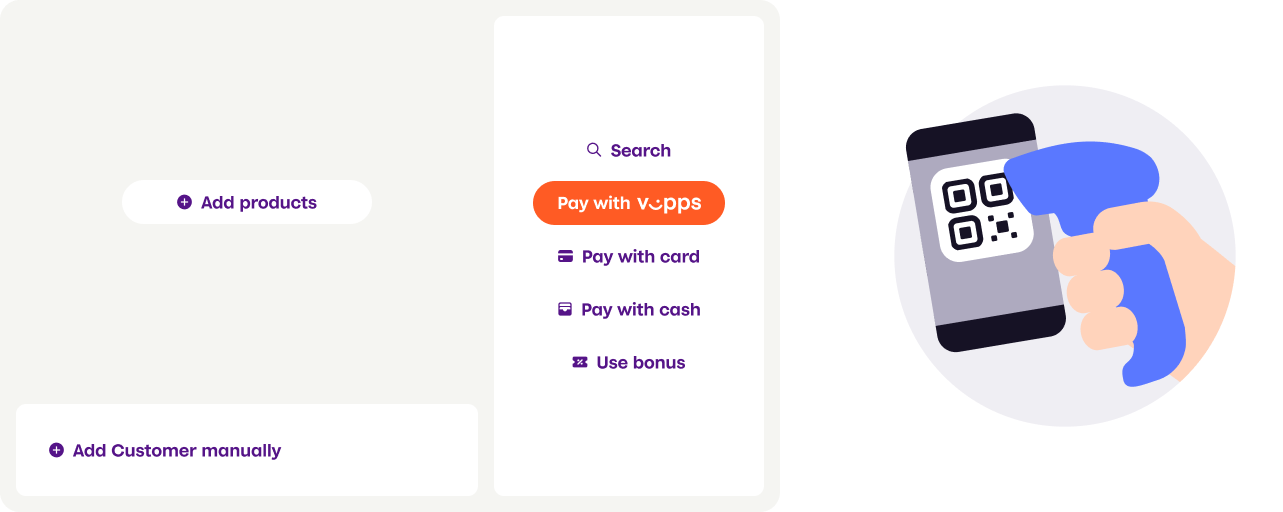
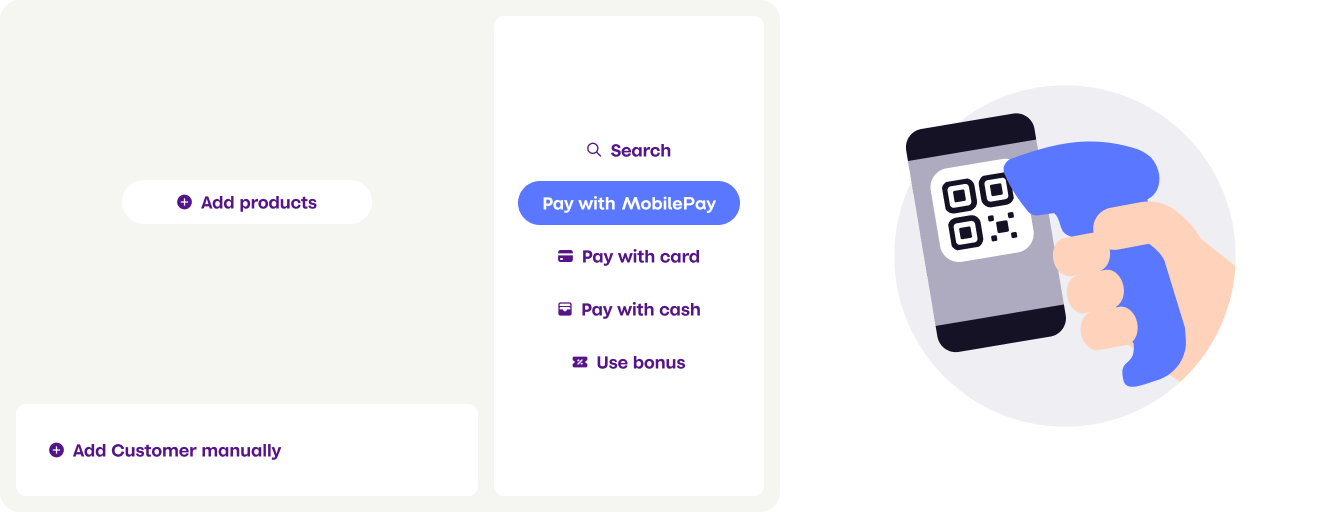
Screenshot: A hand scanner at a point-of-sale terminal used to scan a customer's personal QR code from the app (Vipps or MobilePay).
3. Merchant exchanges QR code for phone number
The scanned QR code contains a tokenized string (for MobilePay) or a clear-text phone number (for current Vipps). The merchant's system calls the Personal QR exchange endpoint to get the customer's phone number.
Request to exchange endpoint:
POST /qr/v1/exchange
{
  "qrCode": "https://qr.vipps.no/p/qwjhewqhueheuqwhuqwhe"
}
Response with phone number:
{
  "msisdn": "4712345678",
  "timestamp": 1634025600,
  "version": "2.0"
}
4. Merchant creates payment request
Using the customer's phone number, the merchant creates a payment request through the ePayment API with:
userFlowset toPUSH_MESSAGEto send the payment directly to the customer's appcustomerInteractionset toCUSTOMER_PRESENT(required for regulatory compliance)- Optional
receipt.orderLinesto display purchase details
See Personal QR feature for complete implementation details.
5. Customer receives and approves payment
The payment request appears as a push notification on the customer's phone. They open their Vipps or MobilePay app and see the payment details, including any order line items sent by the merchant.
The customer reviews and approves the payment in their app.
6. Merchant completes the transaction
After the customer approves the payment:
- The merchant receives confirmation via webhook or by polling the payment status
- The merchant captures the payment to complete the transaction
- The customer receives their receipt
Technical implementation
For detailed API specifications and code examples:
- QR API guide: Personal QR exchange endpoint - API reference