Existing payment agreements
Install AI tools
Give your assistant up-to-date guidance for our APIs, with our plugin or without it.
The plugin is still under development. See the AI tools page for details.
- Claude Code
- Cursor
- Codex
- Without installing
Run both commands, in order.
claude plugin marketplace add vippsas/agent-toolkit
claude plugin install vipps-developer@agent-toolkit
Open Settings, then Plugins.
Add vippsas/agent-toolkit as a plugin marketplace, then install the "vipps-developer" plugin.
For the app, add the marketplace "vippsas/agent-toolkit" and then install "vipps-developer". For the CLI, run the following commands.
codex plugin marketplace add vippsas/agent-toolkit
codex plugin add vipps-developer@agent-toolkit
Paste this into any assistant.
Read https://github.com/vippsas/agent-toolkit/blob/main/plugins/vipps-developer/README.md for Vipps MobilePay integration guidance.
For troubleshooting, see the full instructions.
Existing payment agreements and charges screens still use the old designs in the production and test apps. New designs will be launched in Q3. The screens used to explain the steps in this section use the new designs. They might have a different UX from what you see in the test or production apps. But the features are the same.
The user can see their active payment agreements, as well as stopped payment agreements, and get an overview of all charges in Vipps MobilePay.
- Vipps
- MobilePay
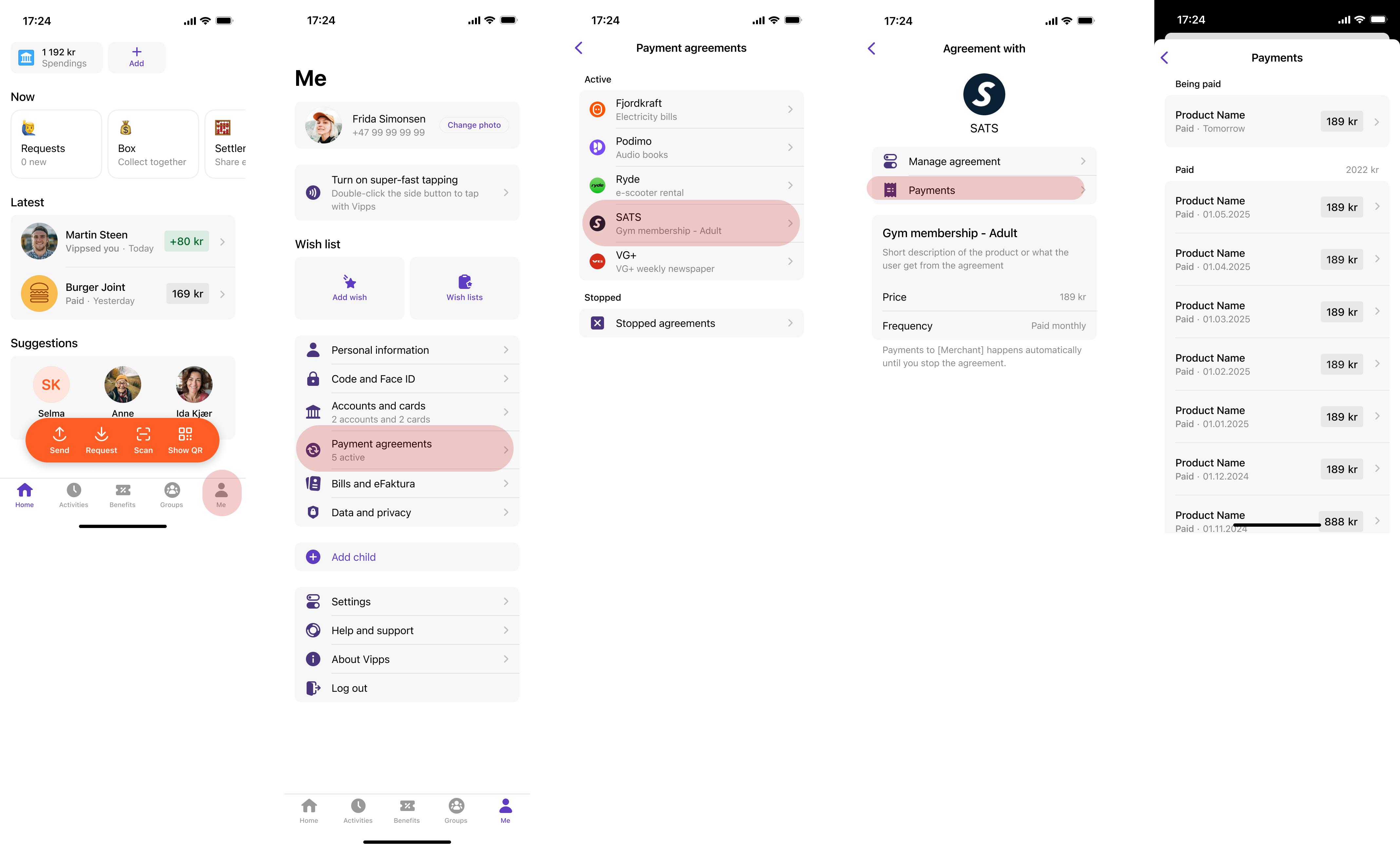
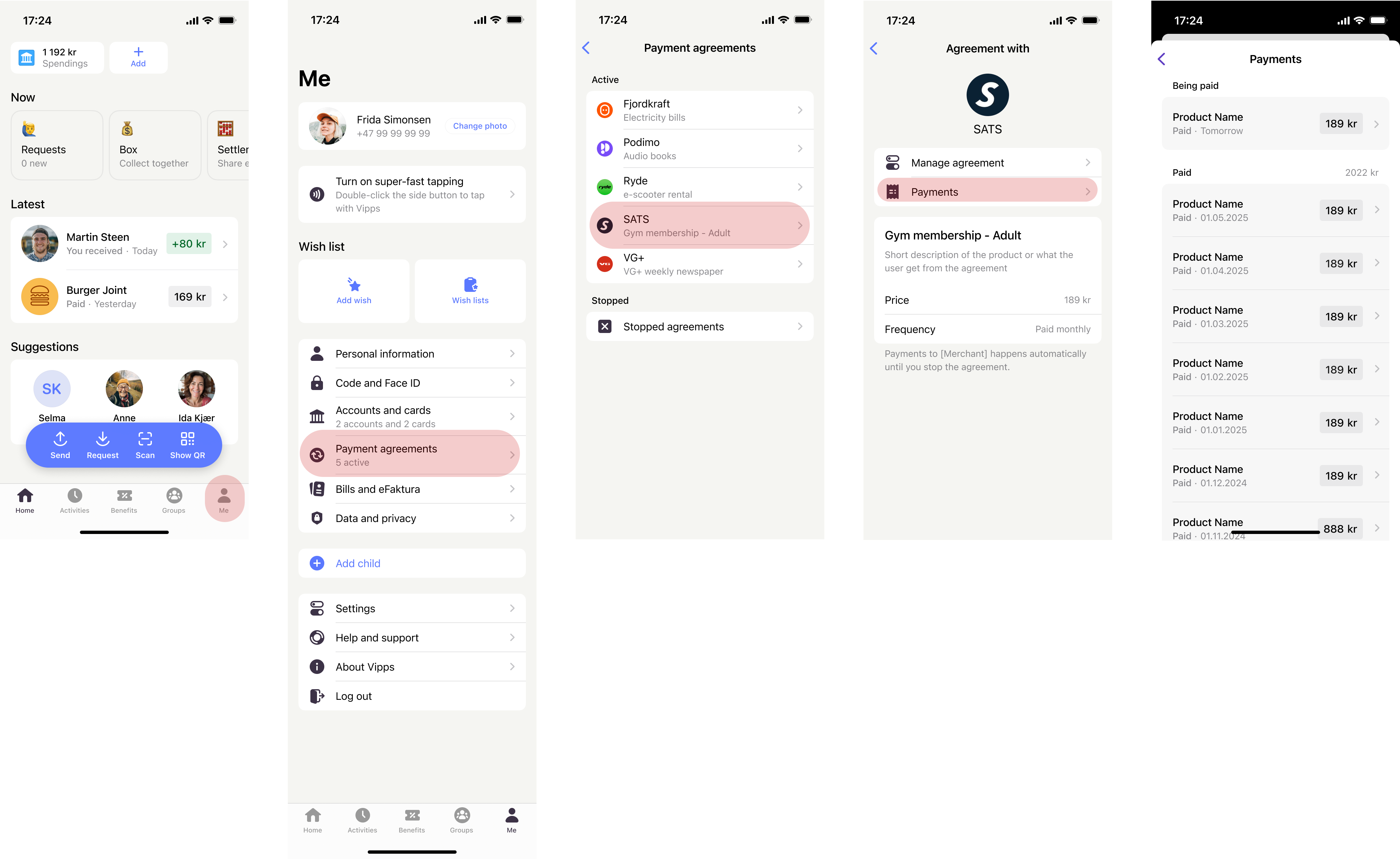
Screenshot: Multi-screen navigation path in the app (Vipps or MobilePay) — the home screen, a profile menu with Payment agreements highlighted, a list of active agreements (such as electricity, e-books, and gym membership) and a Stopped agreements section, an individual agreement detail page with Manage agreement and Payments options, and a payments history showing past charges.
Manage agreement
When the user clicks on Manage agreement, they will be presented with the manage agreement view with different options specific to that agreement. On all agreements, irrespective of their type, the users can:
Change the payment source
Users can change the payment source of any payment agreement at any point in time. Users can either choose an existing payment source or add a new one. The newly selected payment source is verified with a 0 amount transaction. If the verification is successful, the user is notified that the change is successful.
The available payment sources may vary depending on the market:
Norwegian market: Cards only
Finnish and Danish markets: Cards and Accounts
 Norwegian market: Cards only
 Finnish and Danish markets: Cards and Accounts
- Vipps
- MobilePay
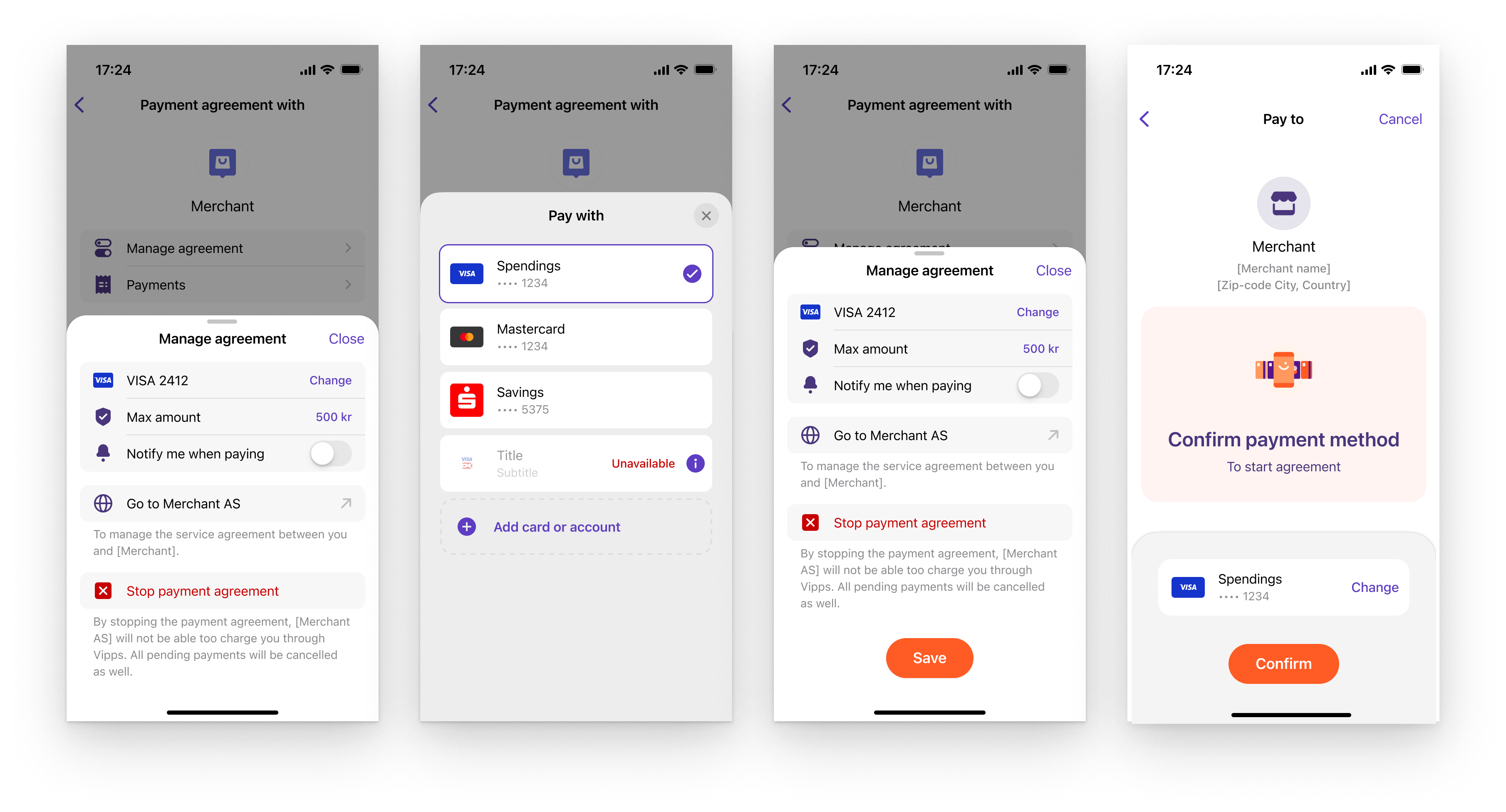
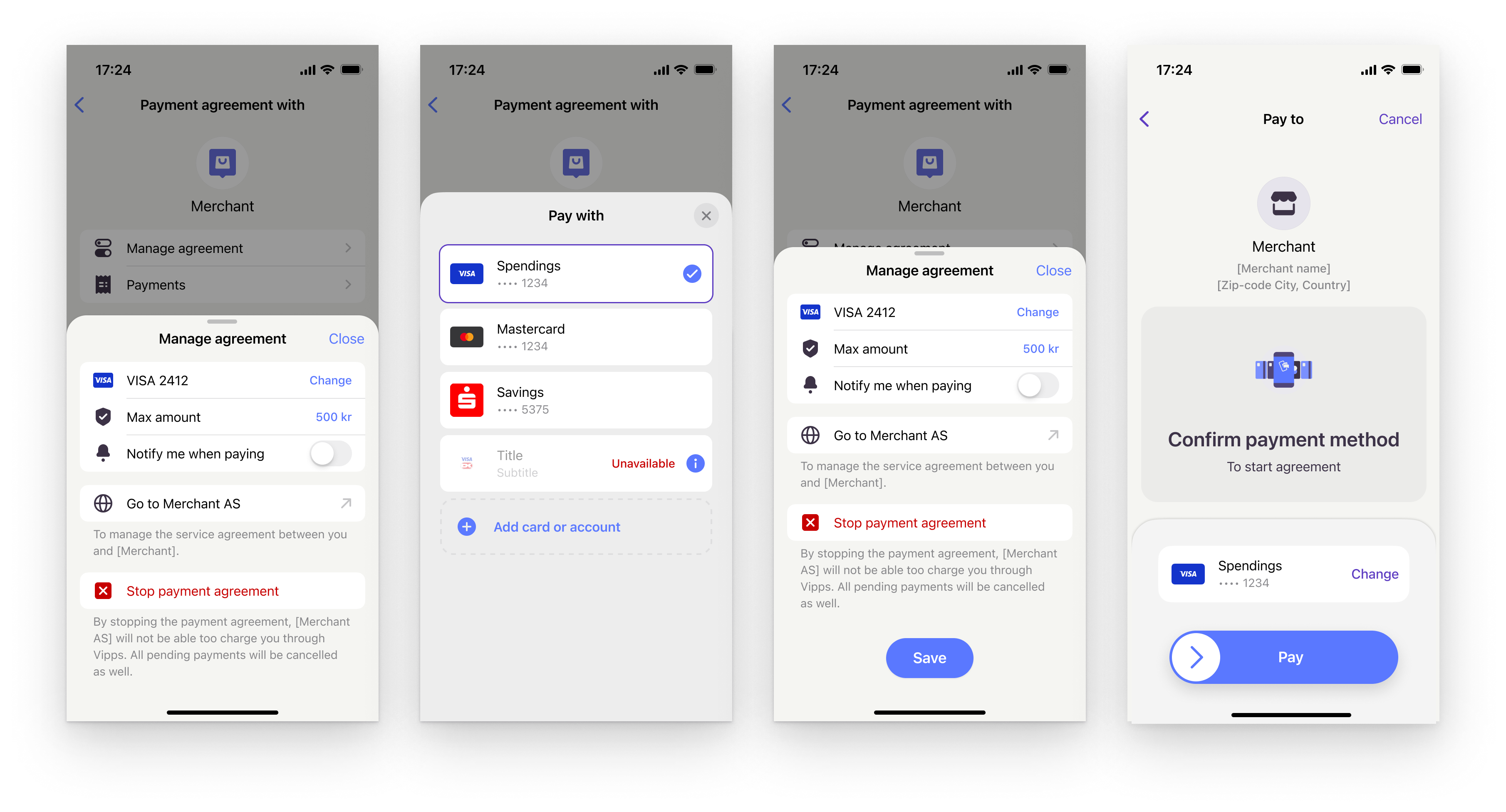
Screenshot: Four-screen flow in the app (Vipps or MobilePay) for changing the payment source — the Manage agreement sheet with a Change link next to the current card, a Pay with picker listing available cards and accounts plus an option to add a new one, the updated agreement details with a Save button, and a payment method confirmation screen.
Update the maximum amount (applicable only for variable price payment agreements)
Users can choose a new max amount for the variable price payment agreements.
- Vipps
- MobilePay
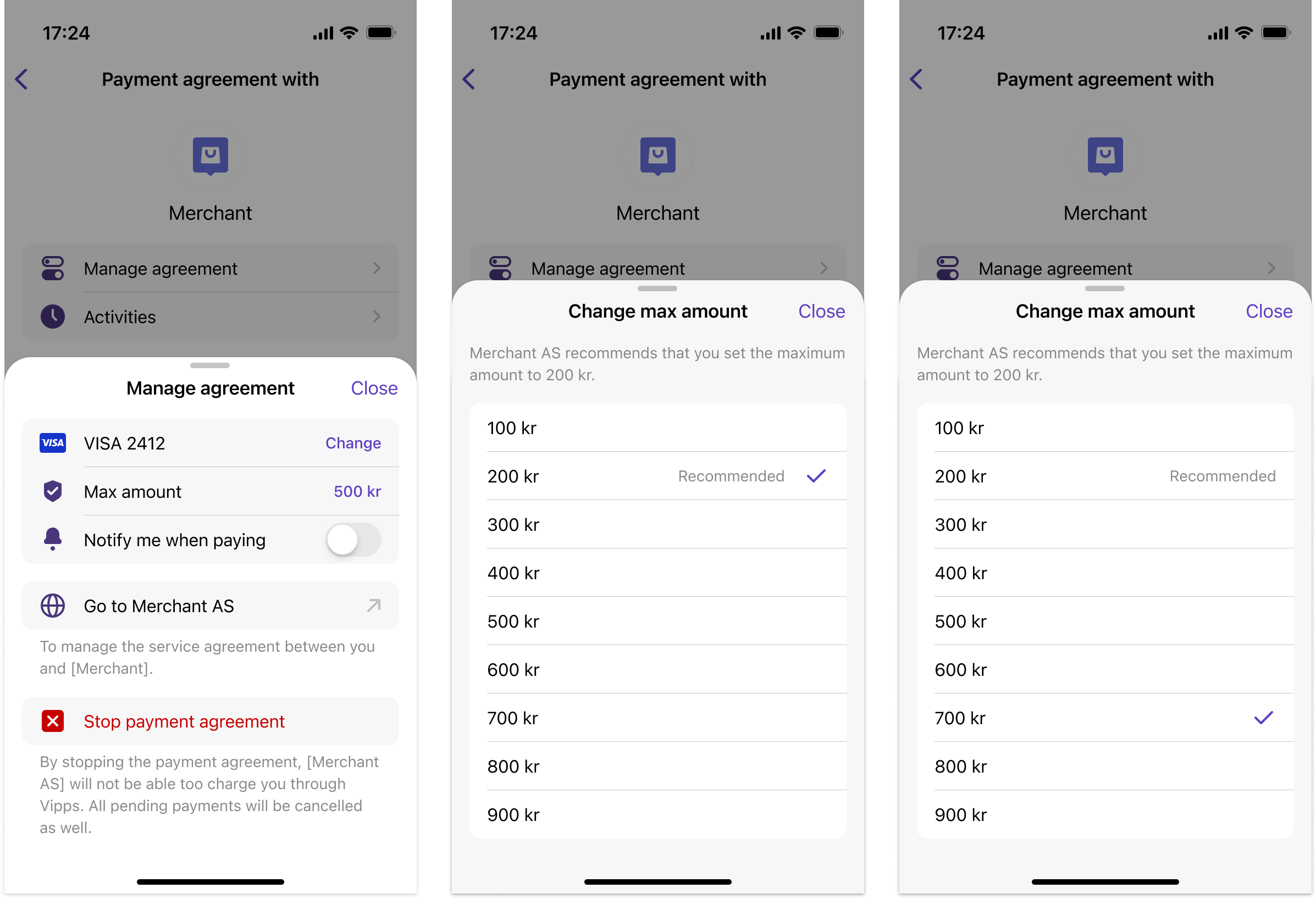

Screenshot: Three-screen flow in the app (Vipps or MobilePay) for changing the maximum amount — the Manage agreement sheet showing the current max amount, a Change max amount picker with a scrollable list of amounts and one marked as Recommended, and the same picker after a new amount has been selected with a checkmark.
Toggle notifications upon payment
Notifications for successful payments are sent to users who have this toggle ON. Notifications for failed payments are sent to users irrespective of this toggle value.
- Vipps
- MobilePay
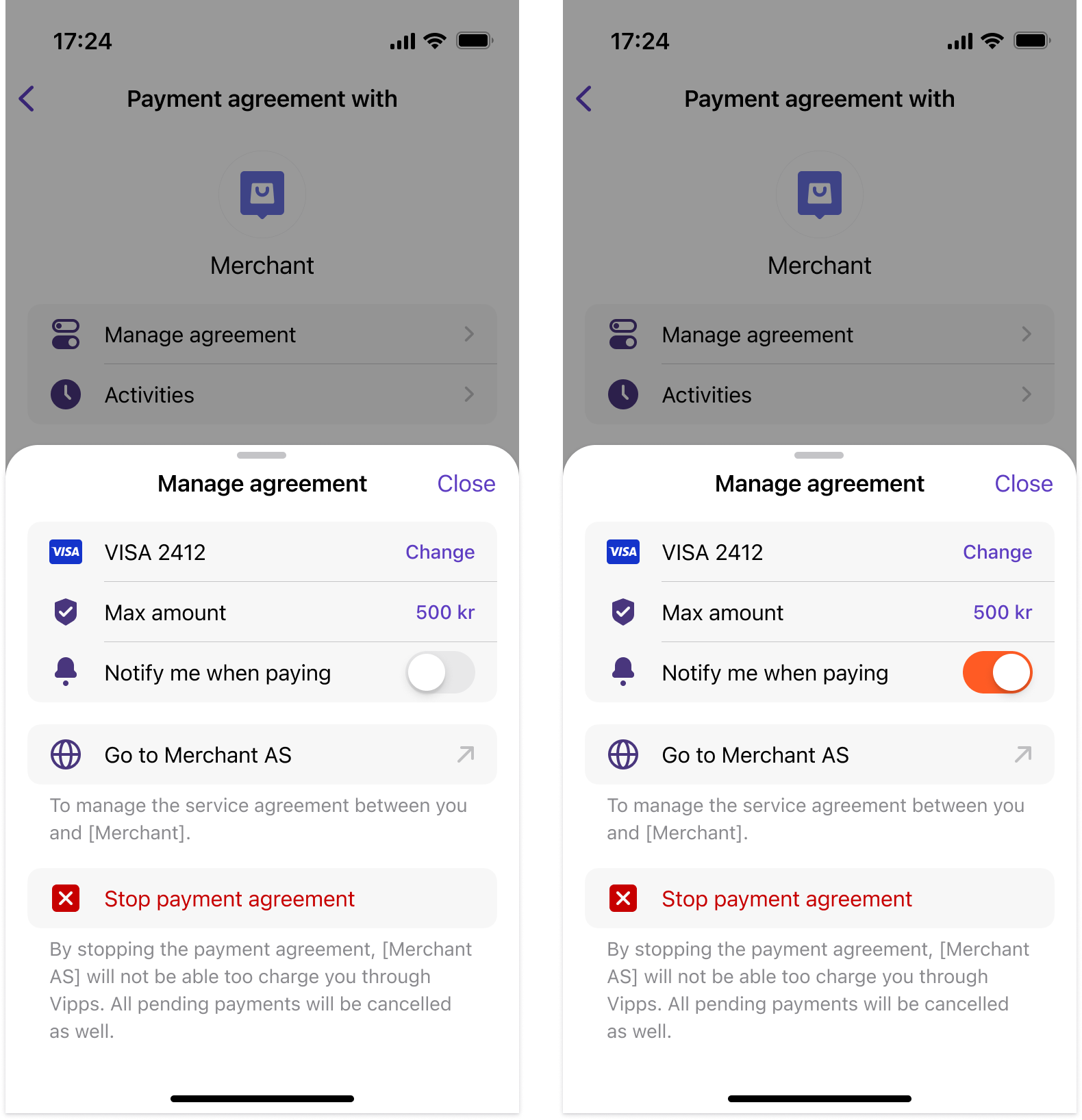
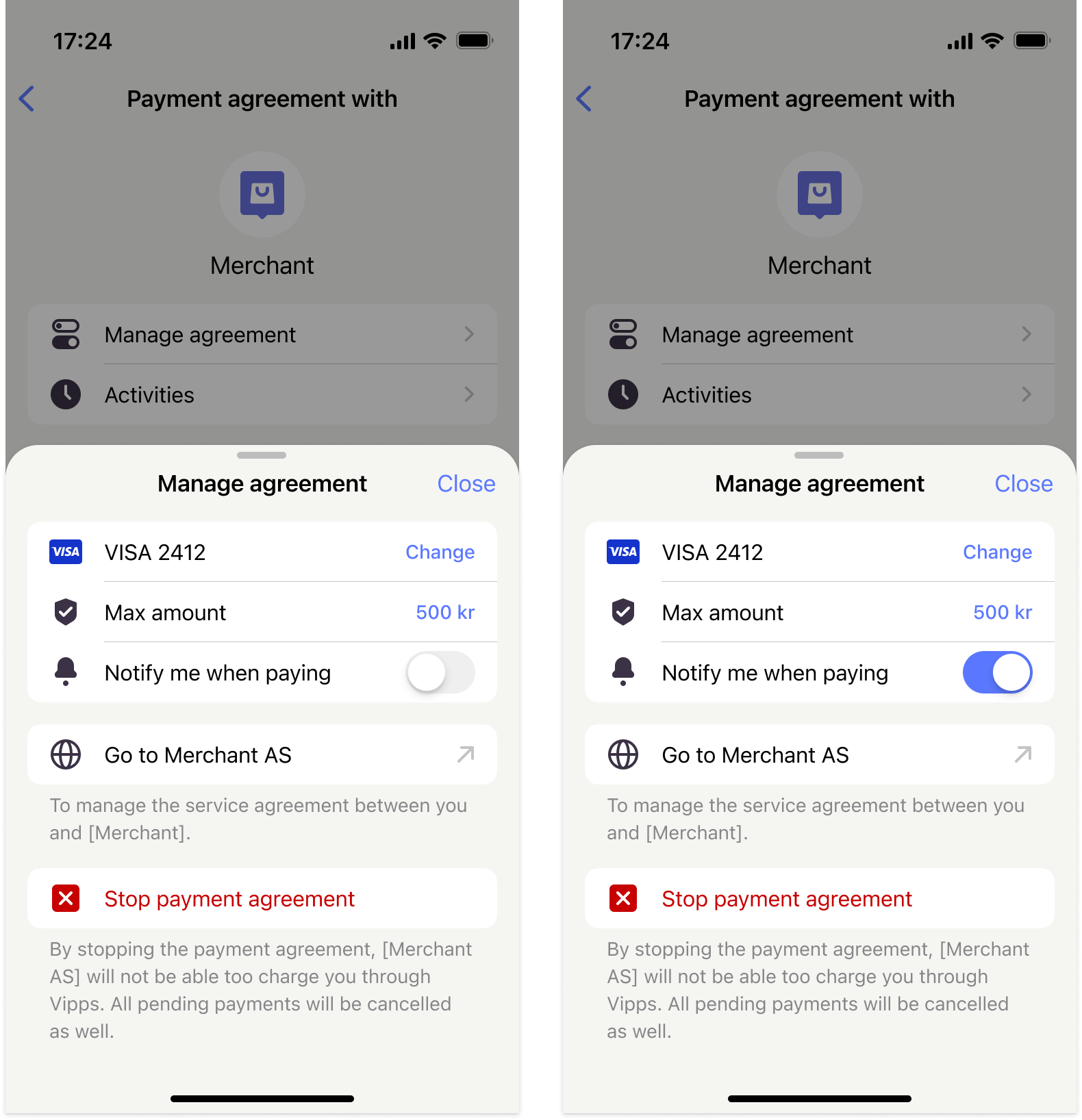
Screenshot: Two-screen comparison in the app (Vipps or MobilePay) showing the Manage agreement panel with the "Notify me when paying" toggle in the off position on the left and switched on on the right.
Manage agreement with merchant
Users can administer their agreement with the merchant by clicking this option in the app, which leads them to the merchant surface (app or web). We highly recommend that merchants ensure the merchant agreement URL is available on every payment agreement so users can administer their agreements with the merchant directly. The merchant's "My page" or "App" must provide an easy way for users to cancel their subscription, as shown below. We recommend that merchants use the Login API to make logging in to the merchant's site easy.
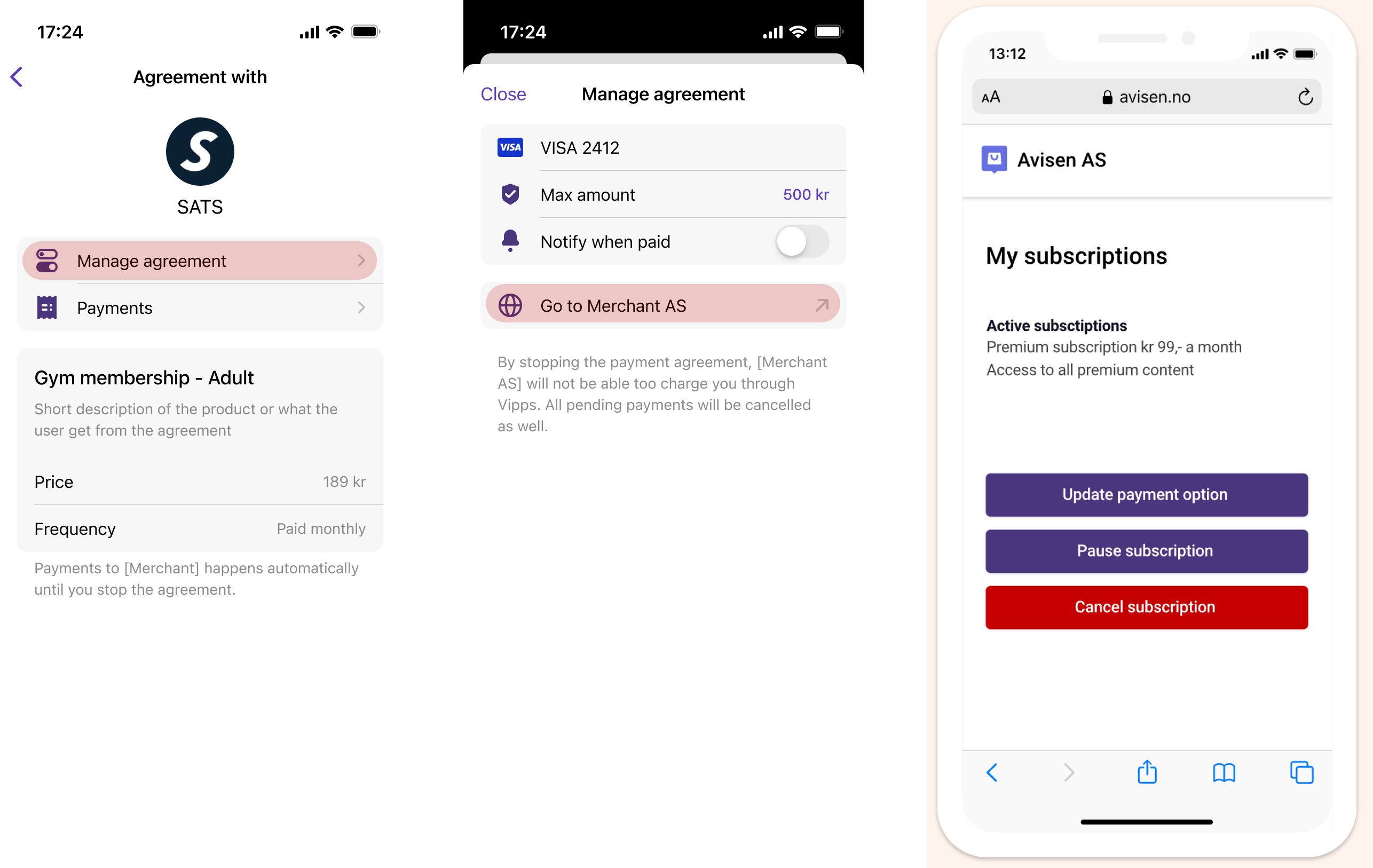
Screenshot: Three-panel composite showing the Vipps app agreement detail with Manage agreement and Payments options, the Manage agreement sheet with the Go to Merchant AS link highlighted, and a merchant's browser page with a My subscriptions section offering Update payment option, Pause subscription, and Cancel subscription (shown in red) buttons.
Revoke payment agreement
Users can revoke the permission they gave merchants to charge them based on the payment agreement. Merchants must make sure to listen to the recurring.agreement-stopped.v1 webhook event and update the
subscription status on your systems accordingly. The actor field in the payload indicates whether the
agreement was stopped by the merchant or revoked by the user.
- Vipps
- MobilePay
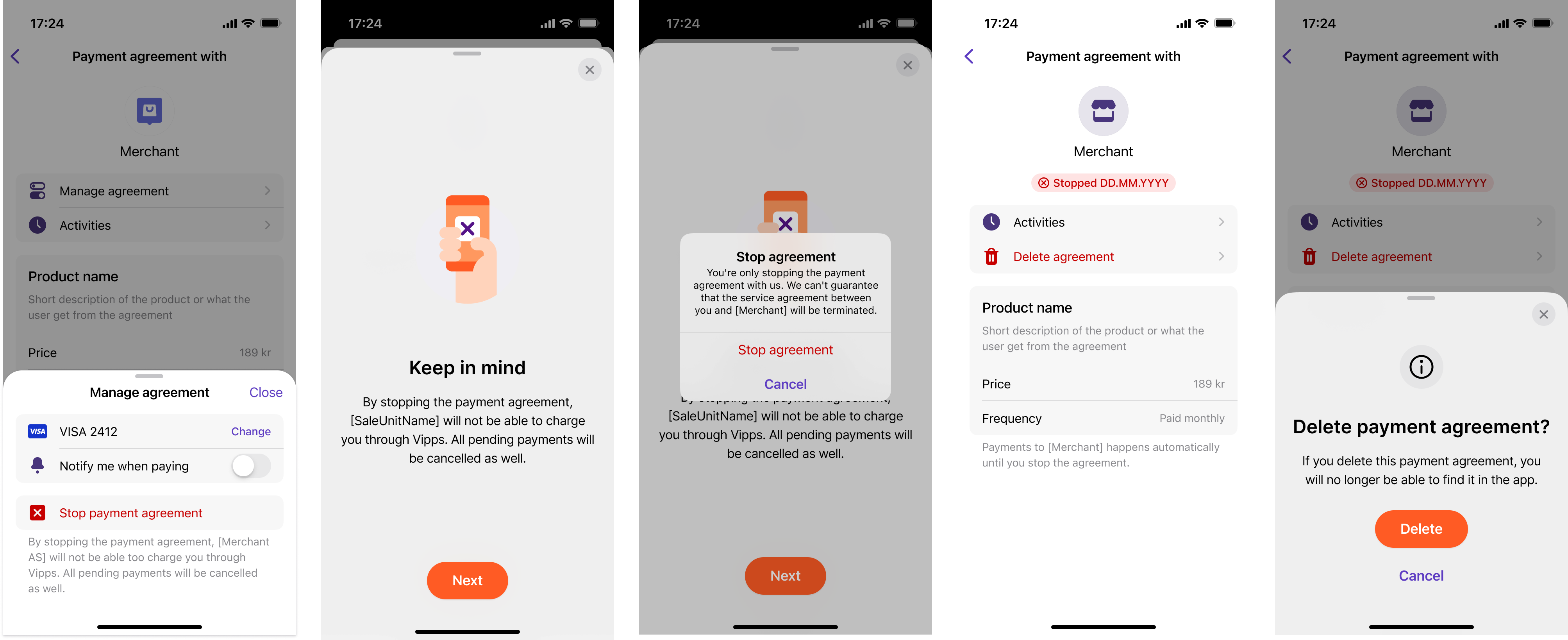
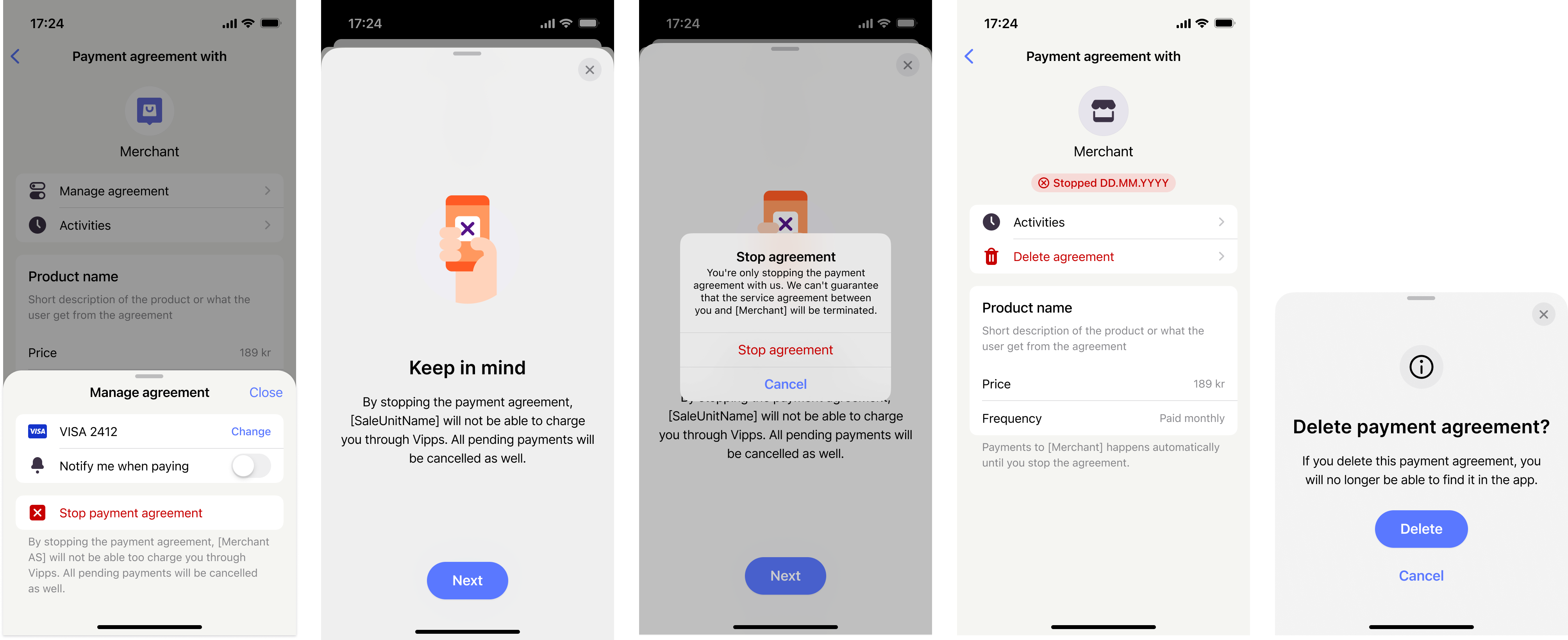
Screenshot: Five-screen flow in the app (Vipps or MobilePay) for revoking a payment agreement permission — the Manage agreement sheet with Stop payment agreement highlighted in red, a Keep in mind warning screen, a Stop agreement confirmation dialog with Stop agreement and Cancel buttons, the agreement view after stopping with a stop date and Delete agreement option, and a Delete payment agreement confirmation dialog.