Initial charge
Install AI tools
Give your assistant up-to-date guidance for our APIs, with our plugin or without it.
The plugin is still under development. See the AI tools page for details.
- Claude Code
- Cursor
- Codex
- Without installing
Run both commands, in order.
claude plugin marketplace add vippsas/agent-toolkit
claude plugin install vipps-developer@agent-toolkit
Open Settings, then Plugins.
Add vippsas/agent-toolkit as a plugin marketplace, then install the "vipps-developer" plugin.
For the app, add the marketplace "vippsas/agent-toolkit" and then install "vipps-developer". For the CLI, run the following commands.
codex plugin marketplace add vippsas/agent-toolkit
codex plugin add vipps-developer@agent-toolkit
Paste this into any assistant.
Read https://github.com/vippsas/agent-toolkit/blob/main/plugins/vipps-developer/README.md for Vipps MobilePay integration guidance.
For troubleshooting, see the full instructions.
An initial charge (upfront payment) is a payment that users pay while signing up for a payment agreement. Only if the initial payment is successful, the agreement sign up is deemed successful. Commonly the initial payment is set to the same amount as the agreement pricing (or the campaign price if applicable), but you can also set it to a larger amount in case they need to pay an additional fee (i.e., the discounted price of the phone if they purchase a smartphone with a subscription). The payment agreement approval step in the sign-up flow is where the upfront payment amount is displayed to the user.
Initial charge can be used with any type of payment agreement and with campaigns.
Example industries/use-cases
✨ Any subscription model that requires the user to pay an amount to start the subscription.
How it looks in the app
- Vipps
- MobilePay
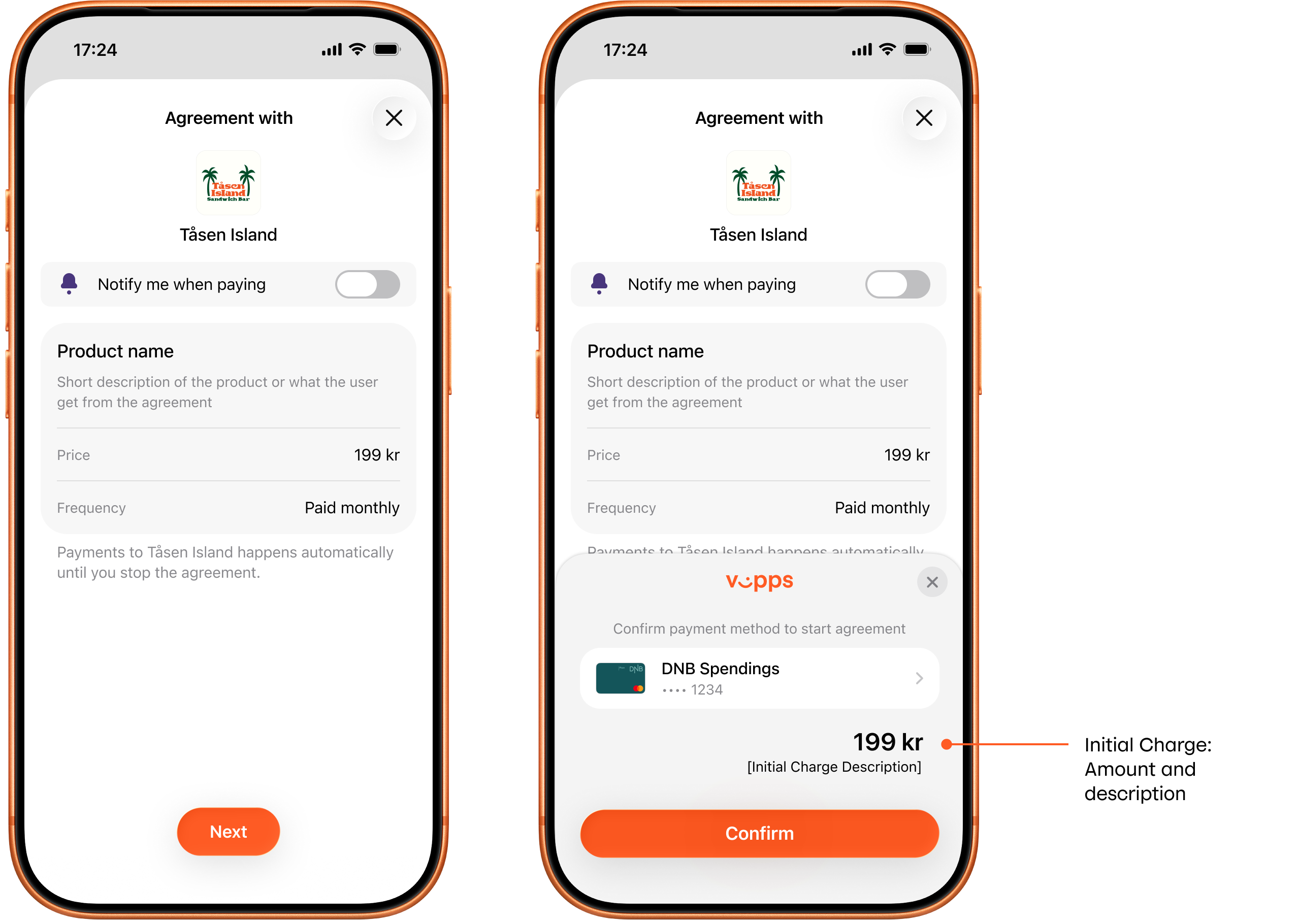
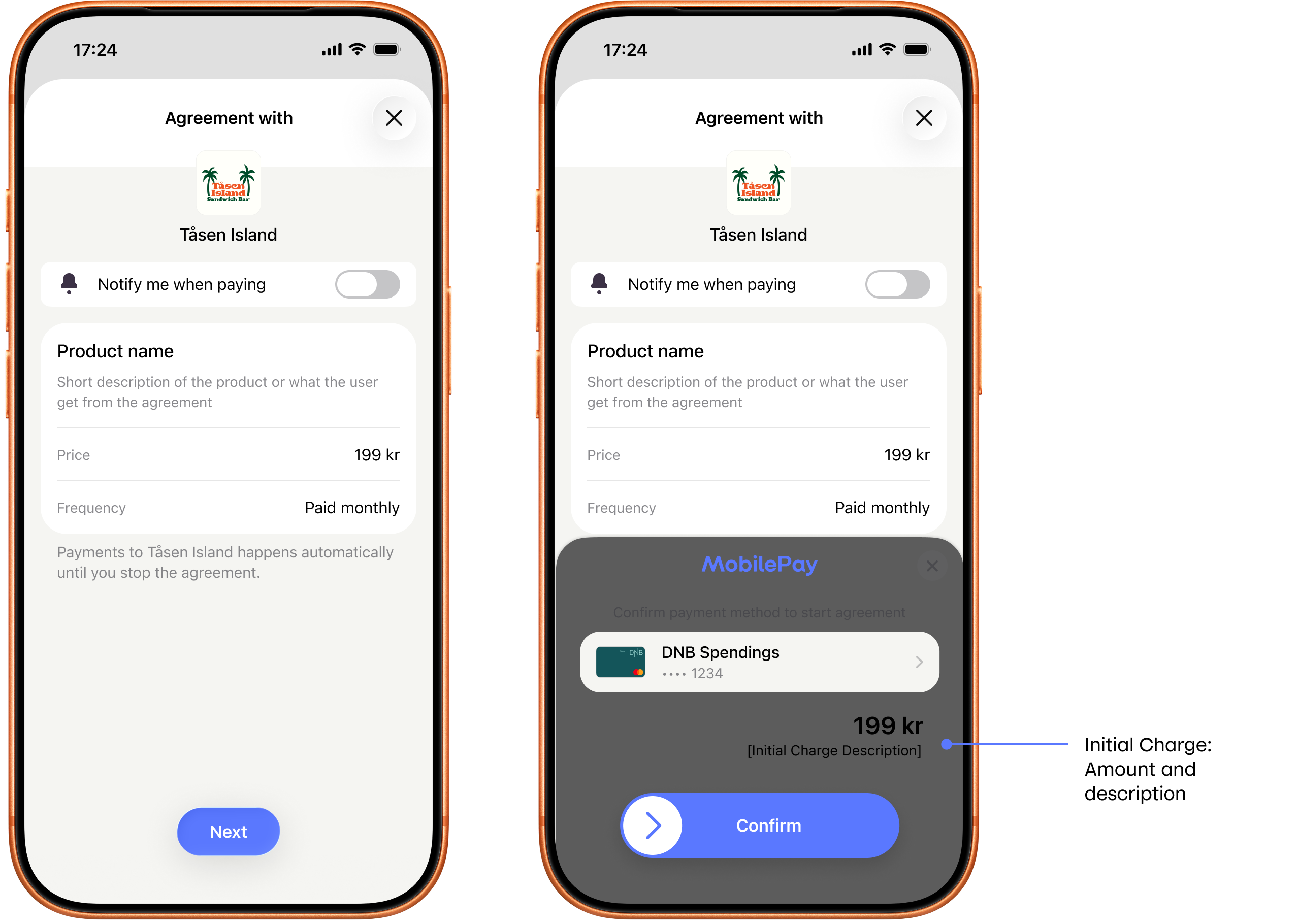
Screenshot: Two-screen payment agreement sign-up flow with an initial charge in the app (Vipps or MobilePay) — the overview step shows the recurring agreement details with an Accept/Confirm button; the approval step prominently displays the initial charge amount in large text along with an "Initial Charge Description" label, a payment card, and a Pay button.
API request snippet
"initialCharge": {
  "amount": 5900,
  "description": "Initial Charge for the subscription",
  "transactionType": "RESERVE_CAPTURE",
  "orderId": "merchant-order-1234"
}