Test environment
Use the test environment to check your implementation before you go live. See Available APIs for what you can test there, and Limitations of the test environment for what you can't. To get started, gather the items listed below.
Test environment setup
Test users
A test user's credentials consist of a phone number and a national identity number.
Your test user must be in the same market and currency as the sales unit. If you need another test user, see create a test user.
Create a test user
Test users can't be created through the app. Instead, use one of the following methods:
- Merchants
- Partners
Merchants can create and retrieve test users on the business portal once they have an active customer relationship.
Steps to create a test user:
- Navigate to For developers in the sidebar
Note
If you don't see this option, ask your Administrator to grant you Developer access.
- Select the Test users tab
- Click Add a new test user
- The system will automatically generate a phone number and NIN
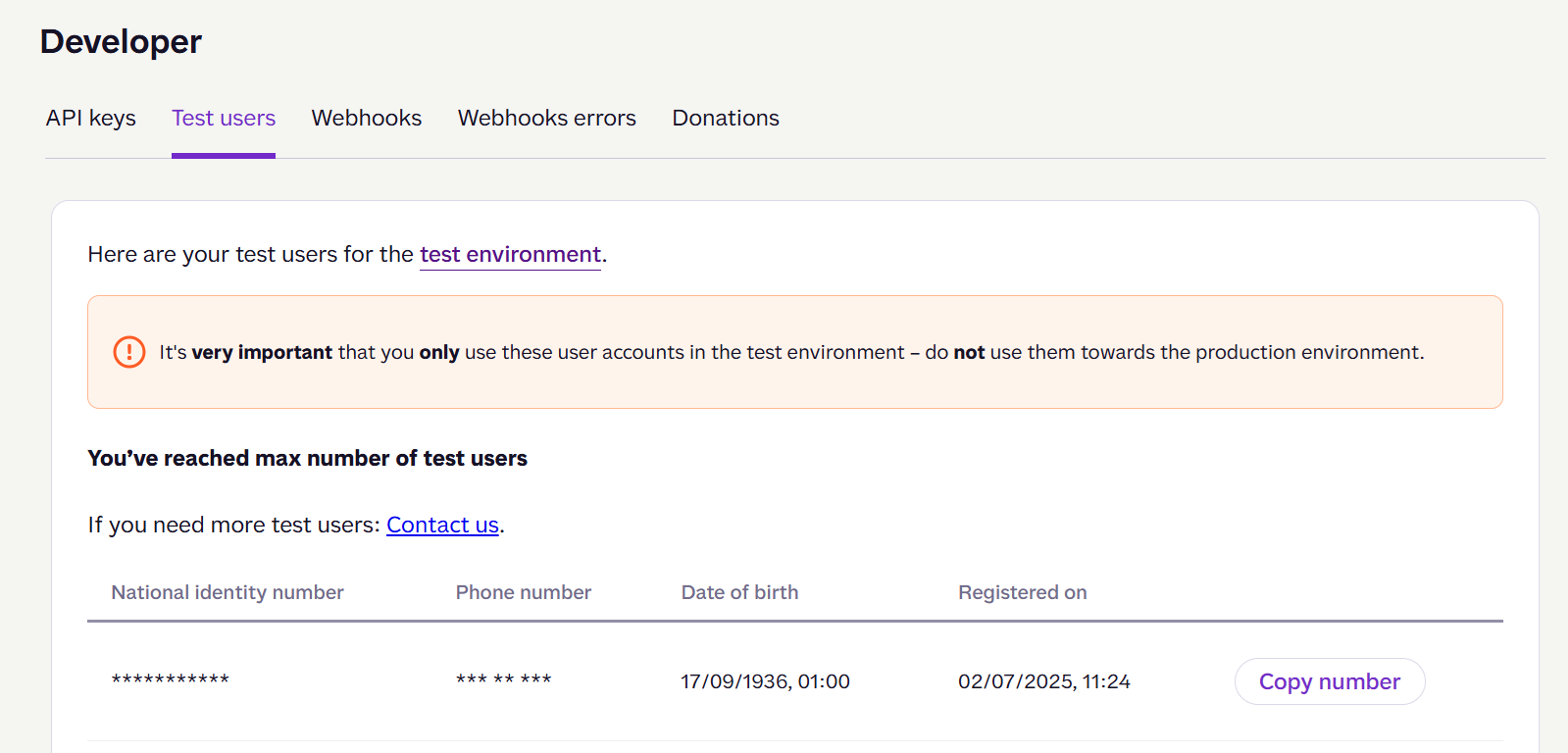
Screenshot: Developer portal "Test users" tab showing a warning that test users must only be used in the test environment. A table lists test users with National identity number, Phone number, Date of birth, and Registered on columns, with a "Copy number" button for each.
For more details, see About the business portal: Add a new user.
Once we have reviewed your partner application, we'll email you test credentials. This email contains:
- Test phone number and national identity number — Use these credentials to log in to our test app and simulate customer interactions.
- Sales unit API keys — Use these keys to authenticate your API calls and send payment requests to our test environment. They are associated with a test sales unit.
If you have an older test user without the national identity number, contact partner@vippsmobilepay.com to request a new one.
Important information about test users:
- Test users can be used on multiple devices and networks simultaneously.
- Test users are not linked to any specific merchant or partner. You can use them with any merchant and sales unit in the test environment.
- Test user attributes (name, birthdate, etc.) are randomly generated at creation. You can specify a birthdate, but no other attributes can be set.
- You can't modify an existing test user.
- Test users are not available in the production environment — production only contains real users and data.
To test in production, you must onboard as a merchant and order a product. This requires completing mandatory compliance checks and making real transactions with an actual user using the production app. We recommend performing as much testing as possible in the test environment.
Test user properties
Each test user has the following properties:
National identity number
A fictitious National Identity Number (NIN) is randomly generated when you create a test user.
You need the NIN to log in to the test app.
Phone number
A phone number is assigned when you create a test user. You need this for logging in to the test app.
Never use test phone numbers in the production environment — they could belong to real users.
Email address
You can add a real email address to a test user by navigating to Profile > Personal information > Email in the test app.
In the test environment, email verification can only be triggered in a
Login
flow (if the merchant requests the email scope), or by clicking send email
in the email section of the profile page. After updating the email address,
close and reopen the app for this option to appear.
Simply saving the email address will not trigger a verification email. You can ignore the unverified status indicator on the profile page.
Payment card
Each test user comes pre-registered with a payment card. You can't add new cards in the test app.
To view test user properties:
- Go to portal.vippsmobilepay.com and select For developers from the sidebar. (If you don't see this option, ask your Administrator to grant you Developer access.)
- Select the Test users tab.
- Select the test user to view its information.
Test apps
You will need the Merchant Test (MT) app for a mobile phone or tablet.
The iOS and Android test apps closely mirror the production apps across all available APIs. They connect to the MT environment instead of production, allowing you to test the complete payment flow with API requests using test users.
You can install the test app alongside the production app on the same device without conflicts,
as the test app uses the vippsMT:// URL scheme, while the production app uses vipps://.
Although the test app looks orange, the APIs can be fully tested for all markets.
The test environment only supports test users with randomly generated phone numbers — you can't use your own phone number or real user accounts.
App installation
Vipps MobilePay requires a minimum version of the phone's operating system. For exact requirements, see help.vippsmobilepay.com.
- Install on iOS
- Install on Android
The iOS test app is available through Apple TestFlight.
You don't need an invitation or activation code.
If TestFlight prompts for one, close and reopen the app using the link below.
-
On your iOS phone, open the TestFlight link.
Note: This link will not work on macOS, and TestFlight search is not helpful.QR code for quick access:

QR code that you can scan to join the Merchant Test iOS app on TestFlight.
You must use the same Google account to join the Google Group and download the app from Google Play.
-
Join the Vipps MobilePay MT Google group:
- Sign in to your Google account that you'll use for testing.
- Go to the Vipps MobilePay Test App Google group page.
- Click Join Group.
-
Download the app from Google Play Store:
Prerequisite: You must be signed in to the same Google account you used to join the Vipps MobilePay MT group.
- On your Android device, open the Vipps MobilePay MT app page on Google Play Store.
- Click Install. If the app is already installed, uninstall it first, then reinstall.
Steps within the MT app:
After installing the app, follow these steps to set up your test user:
- Select your country — it must match your test user's country, or registration will fail.
- If prompted for an age check, select Over 15.
- Locate and copy your test user's phone number and NIN (see Test user properties).
- Enter your test user's NIN.
- Enter your test user's phone number.
Note: Your normal Vipps or MobilePay credentials will not work in the test environment. - Enter
0000/000000to confirm your phone number.
You can enter up to 10,000 incorrect PIN attempts before the account locks. - Click Next to confirm your identity.
A temporary browser window will open and close — this simulates production eID verification. You can ignore it. - Enter
1236to create a personal code. - Re-enter
1236to confirm the personal code. - Enable biometrics (optional).
- Allow notifications.
For issues with the MT app, contact developer@vippsmobilepay.com.
Using other versions of the app
In some cases, you may need to use specific app versions in MT. This can occur when the production apps and environment are not fully aligned with the test environment. When this happens, we provide details on the test environment status page.
Using an emulator
If you use an emulator instead of the native app on a physical device, you may experience issues, including having to log in from scratch every time you launch the app in the emulator.
Test sales units
- Merchants
- Partners
All merchants with API access can use the test environment (with some exceptions).
A test sales unit is automatically created when you order a Vipps MobilePay product that includes an API. You can find the details and API keys in the Developer section on the business portal. For login instructions, see About the business portal.
Test sales units inherit the country code of the merchant they're created for:
- Norwegian merchants can only create Norwegian sales units
- Danish merchants can only create Danish sales units
- Finnish merchants can only create Finnish sales units
Test sales units can't be modified after creation, but you can create as many test sales units as needed.
After submitting the partner application form, you'll receive a welcome email with a test sales unit, API keys, documentation links, and an overview of the required steps of the partner onboarding process.
If you have lost this or need a new test sales unit, please contact partner@vippsmobilepay.com. Sales units are unique per country. Remember to state which country the sales unit should be created for.
Note that partner functionality is not available in test. Instead, you will receive merchant API keys, as mentioned in the limitations section. All payment flows can be tested using the merchant's API keys.
Sales unit API keys
In the test environment, use sales unit API keys: each set is linked to one test sales unit and can only be used with that unit.
The test and production environments are completely separate, so you need different API keys for each environment.
Test environment API keys are typically available within a few minutes after creating a test sales unit.
See:
Test server
Test (MT) API server:
https://apitest.vipps.no
Production API server:
https://api.vipps.no
- Test and production environments are completely separate—each requires its own API credentials.
- Both servers are accessible worldwide with no IP restrictions on the Vipps MobilePay side.
- Access control relies solely on valid API keys.
See Servers for more information.
Available APIs
If you have access to one of these products, you can test it in the test environment:
- Access Token API
- eCom API (use the ePayment API for new integrations)
- ePayment API *
- ePayment PSP API
- Login API
- PSP Merchant API
- QR API
- Recurring API
- Recurring PSP API
- Userinfo API
- Vipps PSP API (maintenance mode)
- Webhooks API
* The test environment doesn't include ePayment: Freestanding card payments.
For the APIs that are not available here, see API limitations.
Limitations of the test environment
The test environment covers the core API flows. Functionality that depends on third-party integrations is only available in production.
Support for the test environment is only available during typical office hours (CET). For current status, see the Status page.
API limitations
These APIs are not in the test environment:
- Donations API
- Management API
- MobilePay Online — has a sandbox of its own, with separate credentials and endpoints. See Getting started with MobilePay Online.
- Report API
- Sales API
Apart from MobilePay Online, these run on the production server only, so to exercise the functionality they cover, you have to test in production.
Test app limitations
- Push alerts may be unavailable or unstable. To see payment requests: Click the Payments button at the bottom, and then pull to refresh on the Payments screen.
- The activity list is empty and old payments can't be found.
- Contactless payments (tap to pay, NFC) are not supported.
Data and features
- There are no settlements in the test environment, and therefore no settlement reports available from the Report API. The only way to test the complete settlement flow is in the production environment.
- The user's email address can't be verified in the normal way. See: Email address.
- Gender is not available through Profile sharing in the ePayment API or Login.
Partner and portal
- Partner functionality and the use of partner keys are not available. Partners receive test sales unit API keys instead.
- There is no equivalent to the business portal for the test environment.
Special test amounts
Certain amounts act as trigger codes in the test environment: use them to consistently reproduce a specific outcome, such as a declined card.
| Amount in minor units (øre, cents) | Outcome |
|---|---|
| 151 | Insufficient funds |
| 182 | Refused by issuer |
| 183 | Suspected fraud |
| 184 | Withdrawal limit exceeded |
| 186 | Expired card |
| 187 | Invalid card |
| 197 | 3D Secure denied (only applicable in Norway) |
| 201 | Unknown result for 1 hour |
| 202 | SCA required (only applicable in Norway) |
Refunds:
| Amount in minor units (øre, cents) | Error |
|---|---|
| 123 | Can't refund single transferred payments. User is deleted or does not have a receiving account. |
| 124 | Refund period expired |
Testing in production
To test in the production environment, you need a live Vipps MobilePay account. You can register for one on the business portal.
Sales units in the production environment are subject to strict regulatory and other requirements. As a result, you may not be able to replicate the sales unit configuration there, even though you have it in the test environment.
When testing with real transactions in production:
- Use 2 NOK (or equivalent currency) as your test amount, even though 1 NOK is the smallest possible amount.
- 1 NOK is not reliable for testing, as it gets low priority in some payment processing systems.
Ready to start building?
Use Find the right API to match your selected flow to its primary and supporting APIs.